VIO4 Setup Guide
This Article Applies To
VIO4 Series Servers
Configurations
VIO4 = 1 in / 3 out OR 2 in / 2 out OR 4 out (SDI)
What's in the Box?
Cablecast VIO4 Video Playback Server
AC power cables
Out of Box & Setup
You will need an ethernet cable for internet access. This will also allow for a Cablecast Customer Success Manager (CSM) to remote in to your server and help with configuration.
Getting Started
Connect the server to power, ethernet, and a VGA monitor. Connect a keyboard and mouse via the USB ports.
Turn the server on.
The server will boot and go through the Windows 11 Out of Box Setup. You will need to create a Windows username and password during this process.
Be sure to note your Windows username and password. Cablecast support does not have a way to recover credentials other than to reimage the system.
Once into Windows, be ready for IO configuration (if needed) and Cablecast software setup.
AV Connections
The VIO4 ships in a 1x3 configuration (one input and three outputs) from the factory. It can be reconfigured using any combination of inputs and outputs (0x4, 1x3, 2x2, 3x1, 4x0) using the VIO IO Configuration Utility.
Connect a cable from BNC 1 to an input on your SD/HD-SDI routing switcher.
Connect a cable from BNC 2 to an input on your SD/HD-SDI routing switcher.
Connect a cable from BNC 3 to an input on your SD/HD-SDI routing switcher.
Connect a cable from BNC 4 to an input or output on your SD/HD-SDI routing switcher, based on your needs. Ex. in 1x3 mode BNC 4 would be your encoder and fed from an output on your routing switcher.
Connect house tri-level or analog blackburst to REF BNC (bottom BNC — see Back Panel diagram below).
VIO4 System Specs
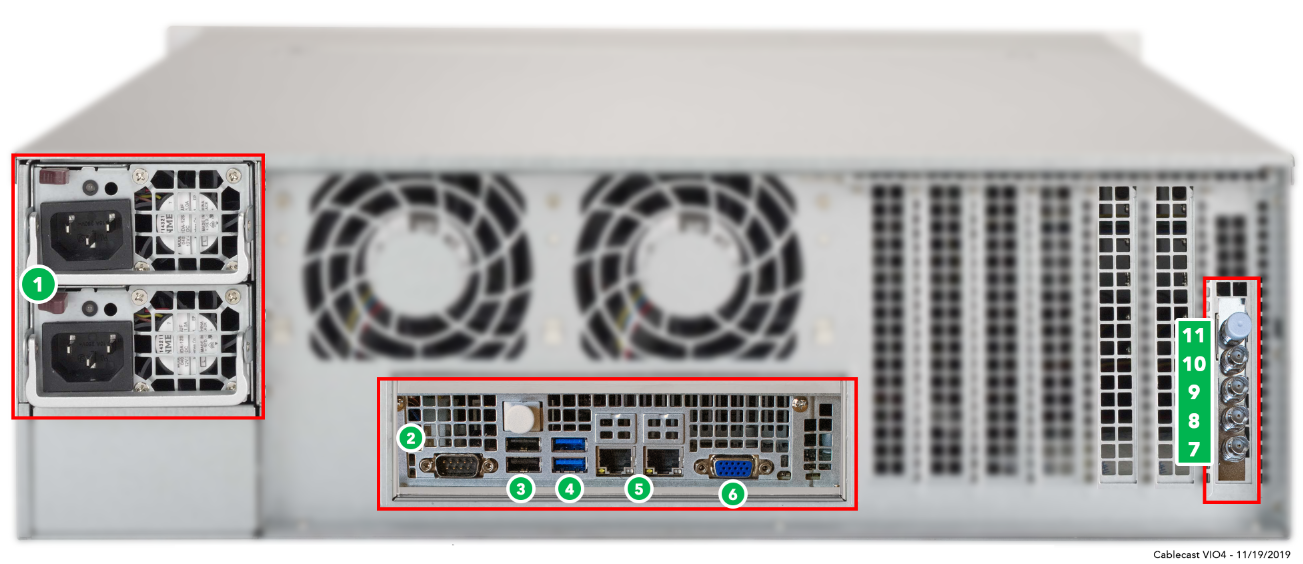
AC Power
RS232 COM port (male)
USB 2.0
USB 3.0
Ethernet
VGA
Ref In
Out 1
Out 2
Out 3 (or In 1 when configured as 2I/2O)
In 1 (or In 2 when configured as 2I/2O or Out 4 when configured as 0I/4O)
Setting Up Audio Normalization
For device resolution and audio configuration, follow the Audio Normalization and Processing in Cablecast guide.
Cablecast CG Background Audio
Cablecast CG supports two background audio options. See the relevant article for your setup:
Setting Up USB Background Audio — for audio sources connected directly to the server via USB
Setting Up Network Stream Background Audio — for internet radio (Icecast) streams, with no additional hardware required
