Migrating Cablecast Data Between Servers
What Needs To Be Migrated?
When upgrading existing Cablecast hardware, particularly if you're replacing the host server, there are some important files that need to be migrated from the existing Cablecast server(s) to the new server(s).
The Databases
Cablecast40 - Contains the Show Records and settings for Cablecast.
Frontdoor50 - Contains your user accounts/passwords and other system configurations in FrontDoor.
CablecastCG - Contains your CG Channel configurations for Cablecast CG (Note that the actual bulletins are not contained in the database).
Carousel40 - if an existing Carousel signage system is still going to be in use on the new system (Similar to the CablecastCG database, the Carousel40 database does not include the actual media/bulletins in Carousel).
The following items should be moved to the same path on the new host server:
E:\TRMS\SystemAssets - these are the thumbnails from the Show Records if the system is on Cablecast 7.5 or newer. Move the entire SystemAssets folder.
If you're migrating from a system on Cablecast 7.4 or older, these are located in C:\TRMS\Web\Cablecast\WebFiles. Move the entire WebFiles folder.
C:\TRMS\Web\CablecastCG\Media - this is all of the bulletins/media for Cablecast CG. Move the entire Media folder.
C:\TRMS\Web\Carousel\Media - If Carousel is in use and will continue to be in use on the new system, this is all of the bulletins/media for Carousel. Move the entire Media folder.
C:\TRMS\Web\Cablecast\CablecastCaptions - This is particularly important if you've been using Cablecast captions on your existing system, as this folder needs to be migrated to keep the captions intact on the new system.
If there's a VOD component in the configuration, the entire VODContent folder from the E drive should be moved to the E drive of the new VOD/Omni server.
Any playback files should be moved from the existing video server(s) to the new video server(s), if those are also being upgraded.
A Note About Cablecast CG/Carousel Migrations
We recommend doing some housekeeping on your Carousel/Cablecast CG bulletins and media before migrating your content to the new host server. If you have any expired bulletins or media that you won't use again, delete those in advance, as it will speed up the process of exporting or migrating those files if you're not transferring files you don't need anymore.
Which Tool Is Right For Me?
There are two tools available for migrations. The recommended option if you're doing a full migration of databases, WebFiles, Captions, video files, etc., would be the Cablecast Migration Assistant. This tool will allow you to migrate your databases, WebFiles, caption files, and Cablecast CG/Carousel media, change any IPs, then run it again and move the necessary video files, all with an executable file that does most of the work for you.
If, for some reason, you cannot make both the new host server and the old host server available on the same network or need to manually move your video files over in advance so that the system can be cutover with playback immediately, the Database Migration tool would be the best option. You can manually move the necessary files via USB drive or another means, then export your databases and move those manually to the new host server. The Database Migration tool will still allow you to export your databases and then import and link them up on the new host server.
Cablecast Migration Assistant
The Cablecast Migration Assistant tool will take care of moving all of the required files outlined above with a few simple steps using a Command prompt on both the old host server and the new.
Preparing the Old Host System
First, identify the host server. Confirm that both the old system and the new are powered on and accessible on the same network. Make sure that you're logged into the servers with administrator access.
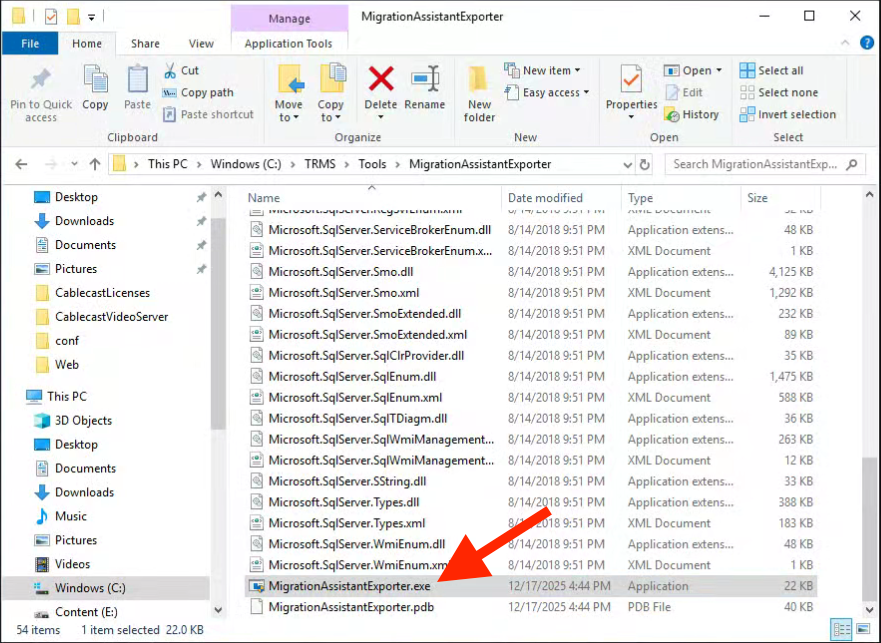
If you are running current Cablecast, the Migration Assistant tool will already be available on your system in the C:\TRMS\Tools folder. Locate the MigrationAssistantExporter folder and look for MigrationAssistantExporter.exe. Right click and choose Run as Administrator to run the tool.
A Note About Older Systems
If your existing system is running an older version of Cablecast and cannot be upgraded beyond its current version, you can contact our Support team to obtain a direct download link for the latest release of the Migration Export tool.
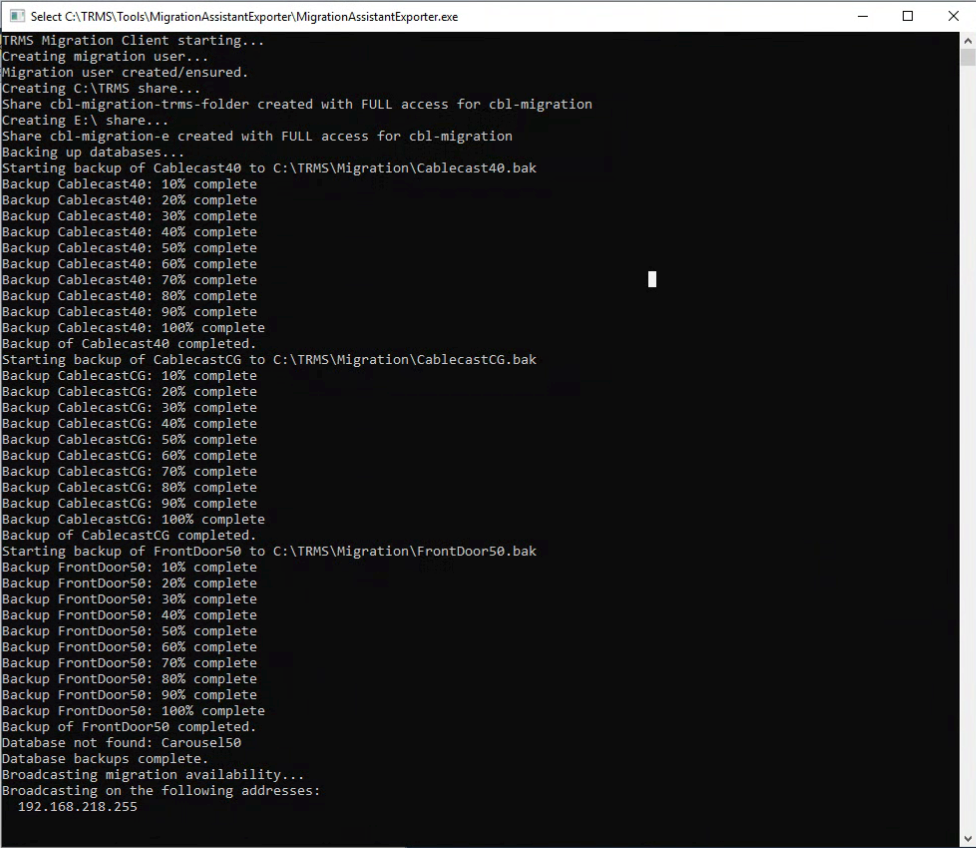
The tool will run through the process of backing up databases and then broadcast on an available IP. Leave the tool running and move over to the new host server.
Starting the Migration on the New Host Server
Make sure to update Cablecast to the latest release on the new server before updating. This will ensure that you have the latest version of the migration tool on your new host server.
In C:\TRMS\Tools, locate the MigrationAssistant folder and open MigrationAssistant.exe on the new host server. Be sure to right click and choose Run as Administrator.
The Migration Assistant will start and wait approximately 10 seconds to discover the broadcasted system. When prompted, select the detected old system and press enter. The tool will then:
Mount the remote shares from the old system
restore the backed-up databases
Copy available content
WebFiles
CG/Carousel media (if found)
The tool will skip items that don't exist (E drive, CablecastCaptions, etc.).
It's worth noting that, depending on how many assets need to be moved over and the speed of your network, the copy process can take some time, but the tool will show the status of any transfers.
Carousel Migrations
If you have an existing Carousel configuration, you will be asked how you want to handle the Carousel migration.
Note: Carousel 7 is no longer supported. If you did not purchase CG licenses with your new Cablecast system, contact our Sales team for a quote before proceeding.
There are three options:
Do Nothing - Skip Carousel Migration
Migrate Carousel -> Cablecast CG
Copy Carousel -> Carousel (Not Recommended)
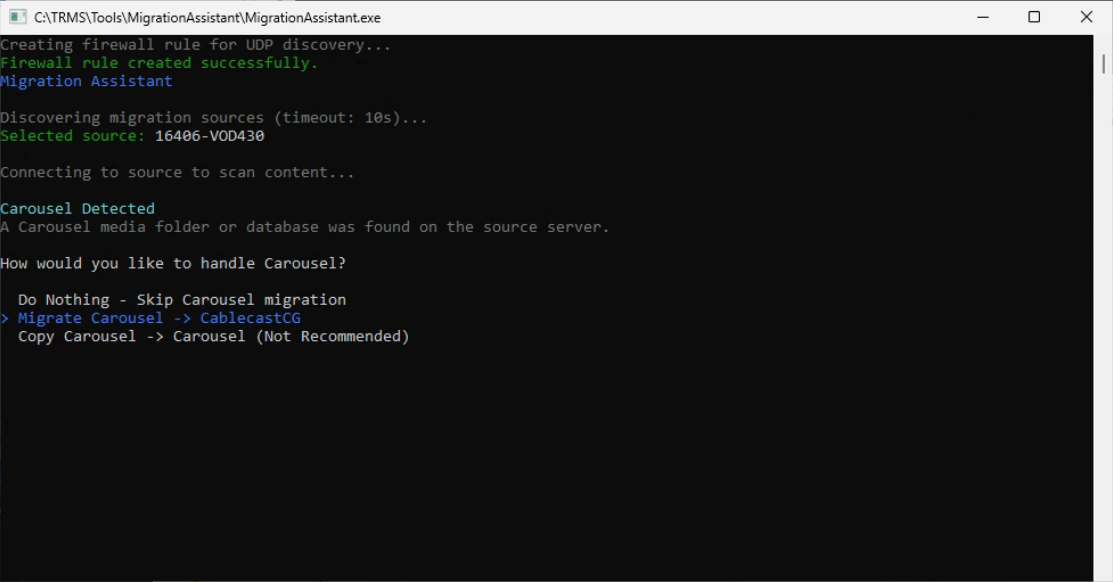
You'll want to choose the Migrate Carousel -> Cablecast CG for a full migration from Carousel to Cablecast CG. If you do not want to migrate your existing Carousel Channels, Media, bulletins, etc., you can choose the first option to skip the Carousel migration (Do Nothing). We do not recommend a Carousel to Carousel migration unless you are keeping existing Carousel bulletin boards for use.
Once you made your selection, press enter to move to the next step of the migration.
Remaining Migration Steps
Once the necessary files have been migrated over, the tool will ask if you plan to add or remove video servers. Type y or n depending on whether the answer is yes or no. If you are adding or removing video servers, the tool will clear the DigitalFiles table. If you are doing a 1:1 swap of existing servers for new servers, you can say no.
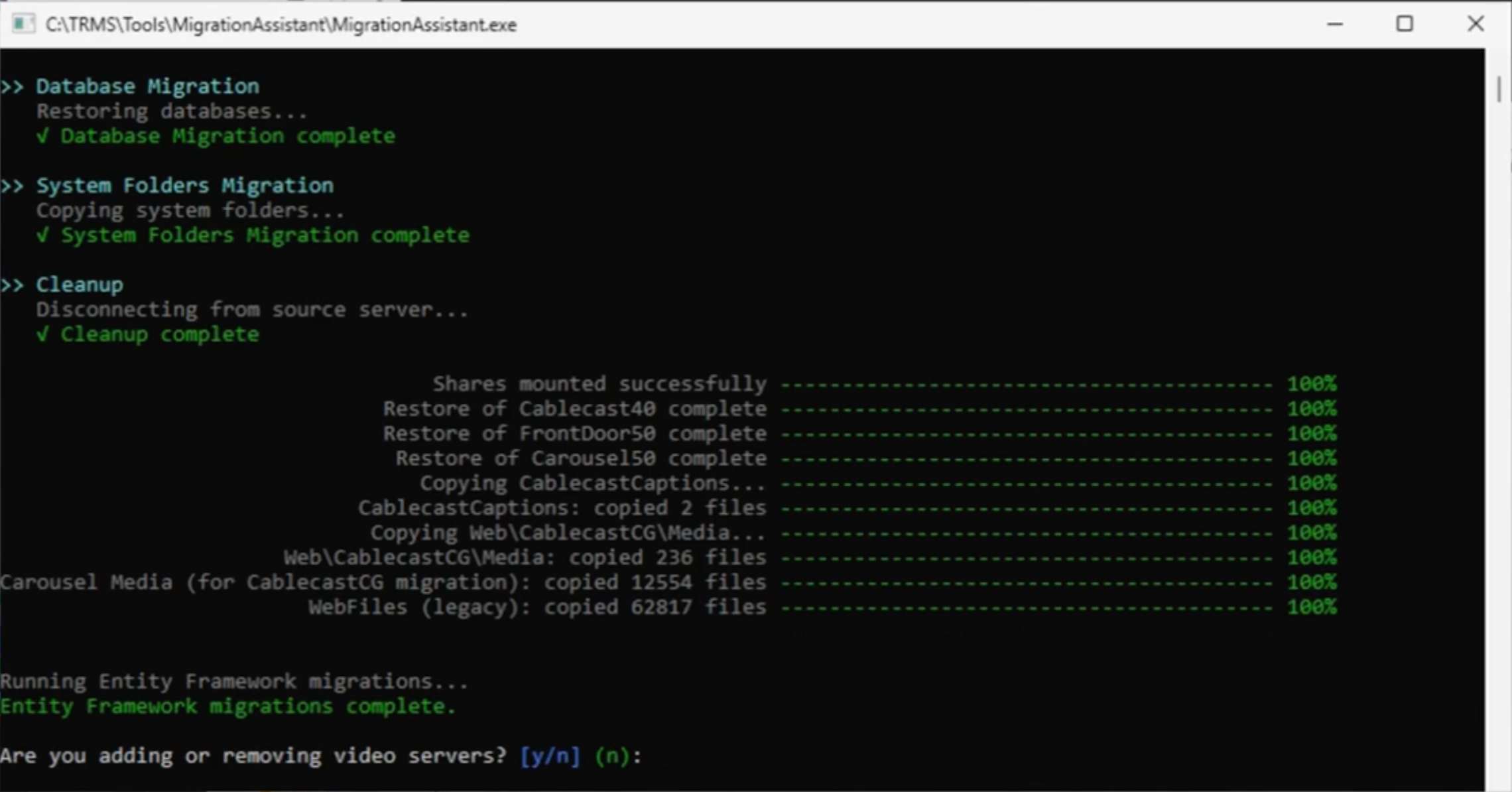
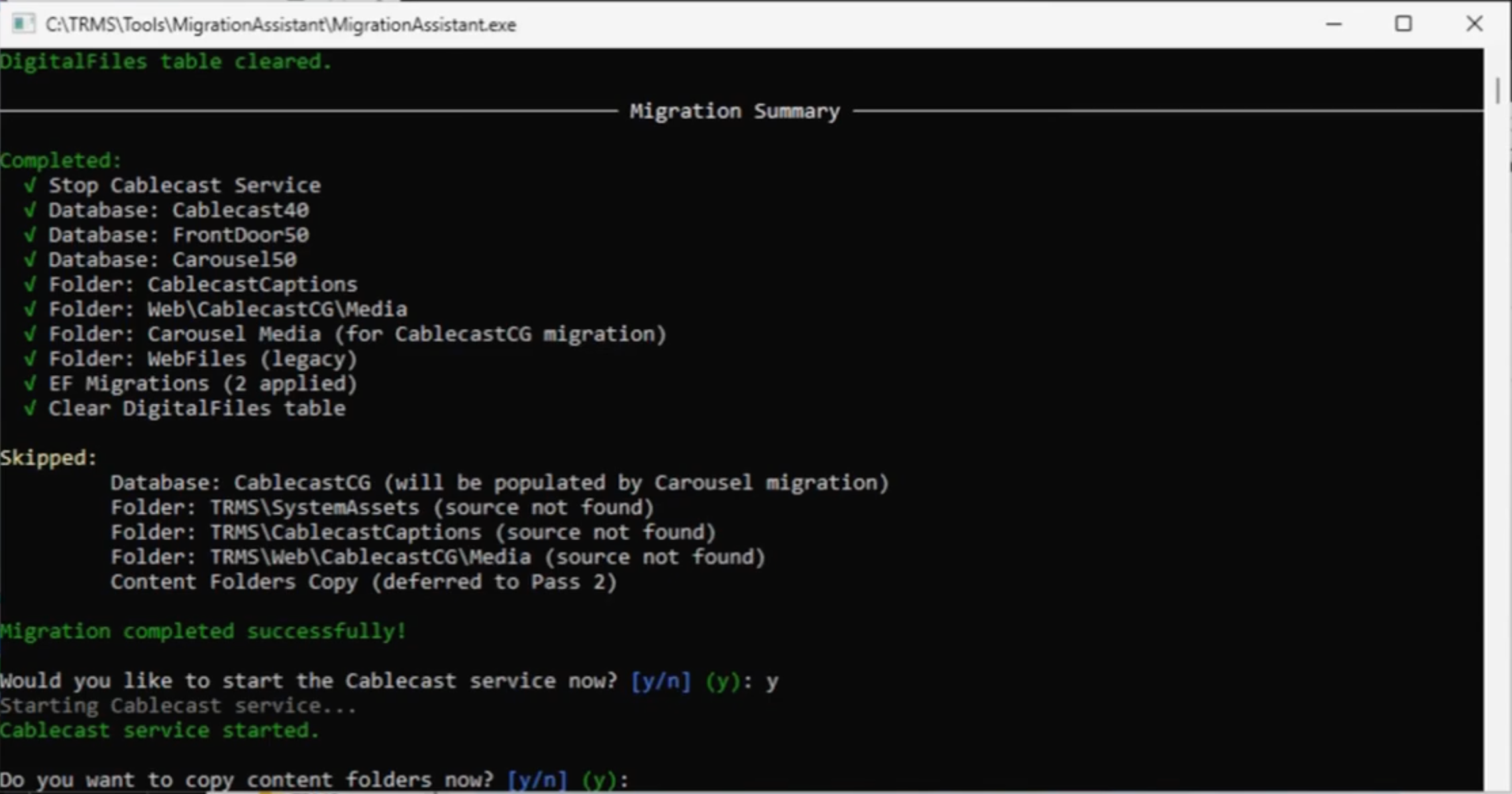
The tool will then show you a migration summary and ask if you'd like to start the Cablecast service. At this point, you can say yes (y), unless you need to make any IP changes, such as moving the IP of an existing host to a new host server first.
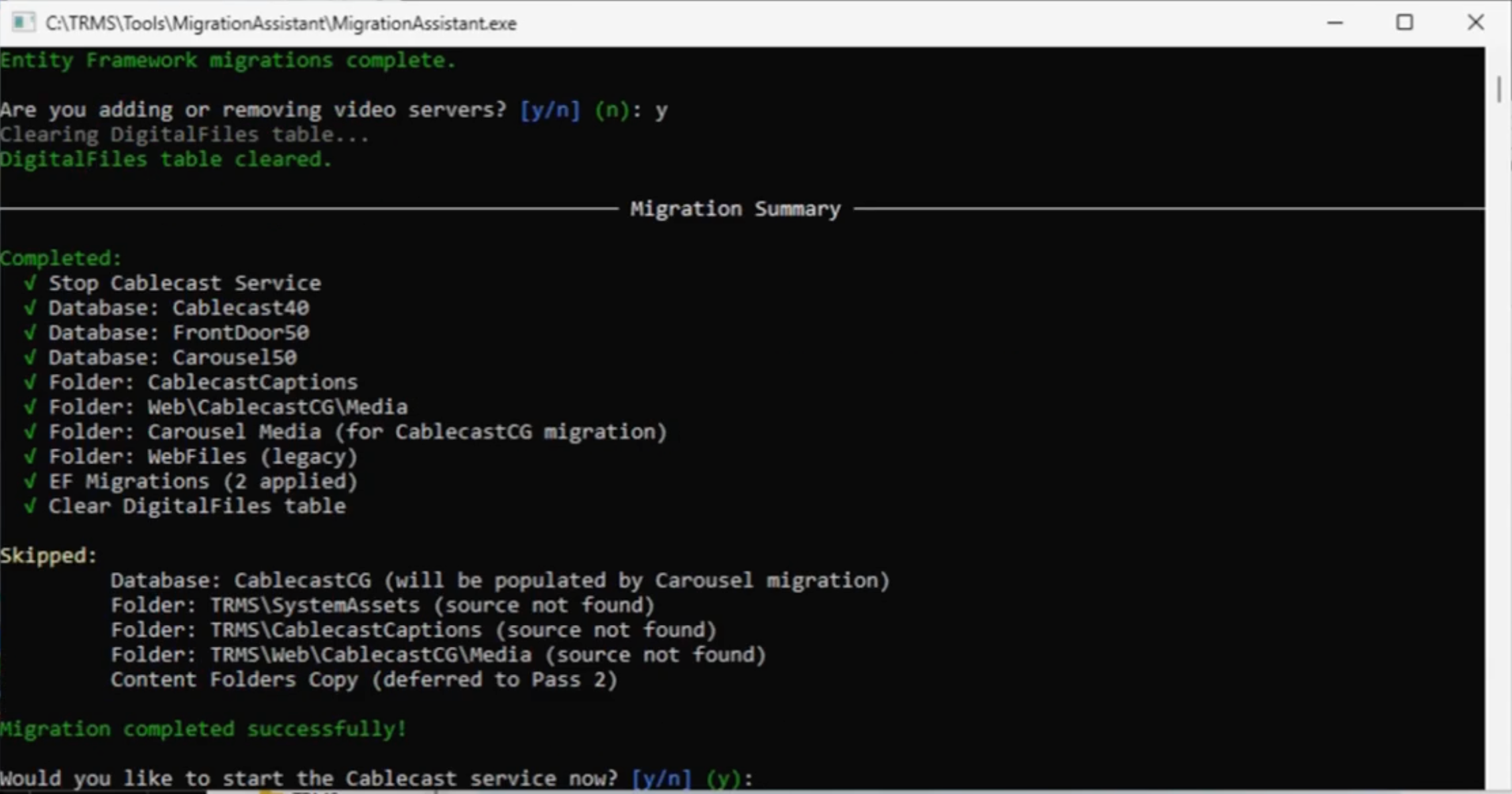
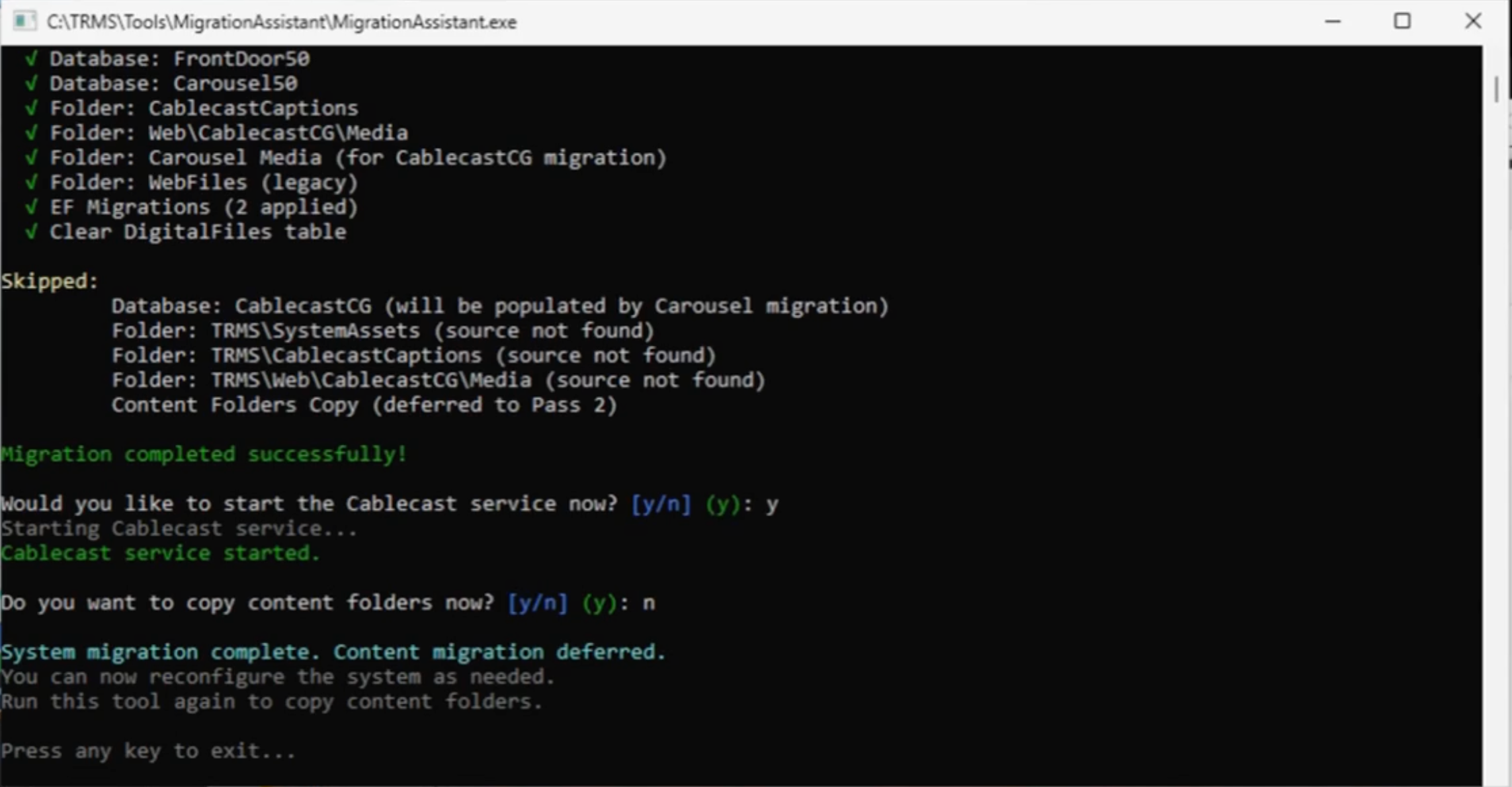
Next, you'll be asked if you want to copy content folders now. If you've already done this manually or if you need to swap IP addresses between any servers first, say no (n). You can relaunch the tool once those changes have been made, and it will pick up with this prompt, where you can then say yes (y) when you are ready, if you need to move video files over.
At this point, the tool has completed the migration process and you can press any key to close out of the installer. If you need to resume running the tool to migrate video files, the tool will pick up from that part of the process when you relaunch it.
Verify Copied Content
After the Migration Assistant completes, confirm that all expected files landed in the correct locations on the new host server. Confirm that:
WebFiles/SystemAssets were copied successfully
CG or Carousel media landed in the expected directory
CablecastCaptions moved to the correct location
Confirm whether the old system used:
WebFiles vs ShowFiles
Carousel vs Cablecast CG
Database Migration Tool
Exporting Databases on the Old Host Server
Our Database Migration Tool simplifies the process of exporting and importing the databases from the old host server to the new.
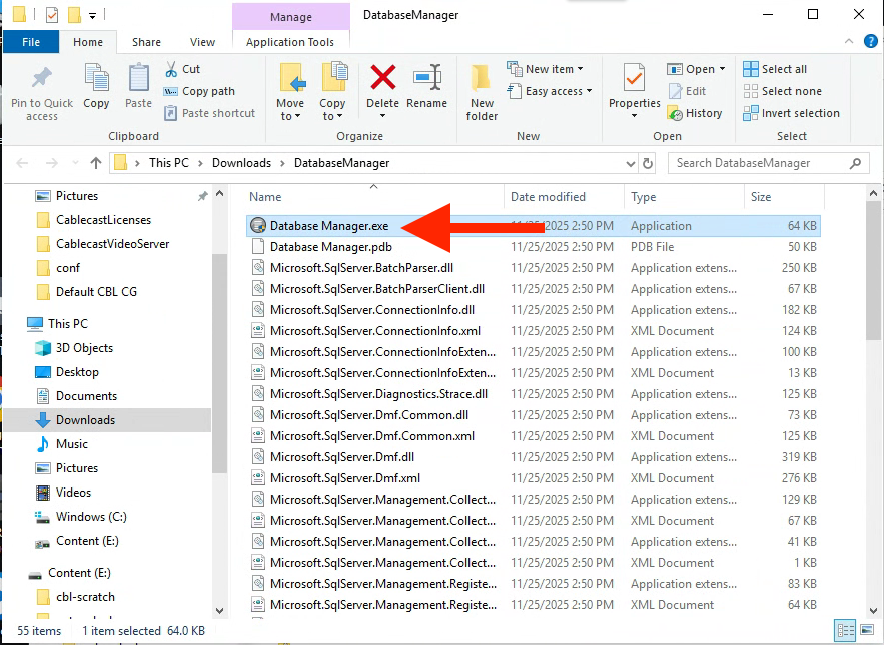
Download and extract the Database Migration Tool on the old host server. Double-click Database Manager.exe to launch the tool.
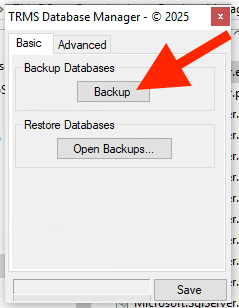
In the Basic tab of the tool, click Backup.
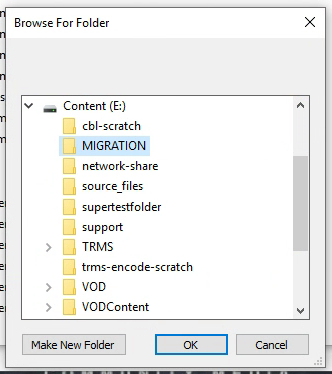
Select where you want the databases to be saved, then click OK. Be sure that you're backing up the files to a location that has administrator/write permissions, such as the Downloads folder, or we prefer to create a MIGRATION folder on the E drive of the old host server for all of the files that need to be moved to the new host server.
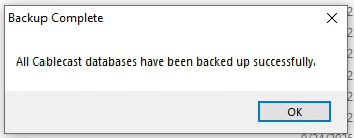
You should see a notification that the databases were backed up successfully. Click OK.
Importing Databases on the New Host Server
Before Restoring Databases
Prior to importing the databases on the new host server, be sure to remove Cablecast by going to Add/Remove Programs in Windows and removing the version of Cablecast that's currently installed.
You'll want to copy your MIGRATION folder with all of the files outlined at the beginning of this article over to the new host server before proceeding with restoring the databases on the new host server. If VODContent or playback files are still transferring, that's ok, but SystemAssets and Cablecast CG/Carousel Media will need to be in place on the new system.
Download and extract the Database Migration Tool on the new host server. Double-click Database Manager.exe to launch the tool.
In the Basic tab of the tool, click Open Backups...
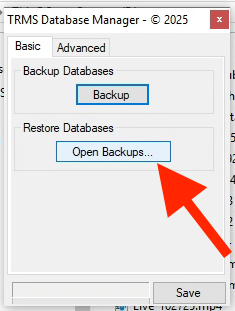
Navigate to where you've copied your migration files and databases to on the new host server.
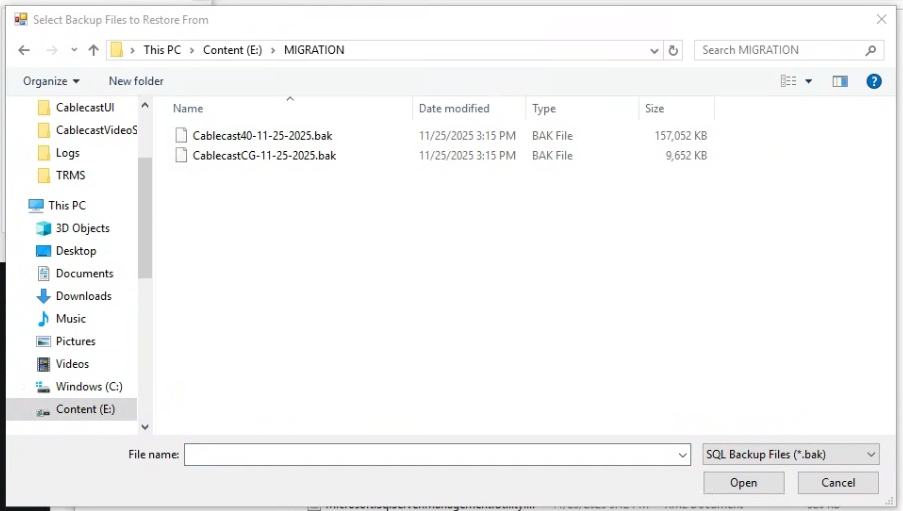
You can shift+click all of the databases to restore them all at once, or you can restore individual databases. As each database is restored, you'll be prompted to indicate if you're sure you want to restore the database, which will overwrite the existing database. Click Yes to confirm.
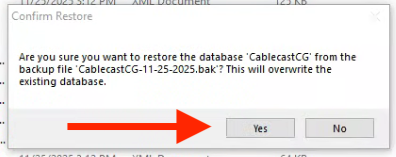
Once the databases are restored and any SystemAssets/Cablecast CG Media is copied over to the correct location on the new host server, you can reinstall the latest version of Cablecast.
IP Address of Host Server
We recommend swapping the IP of the old host server to the new host server. This is particularly helpful if there is an external address configured with Cablecast, as it will eliminate the need to reconfigure any firewall settings or repoint the external address to a different internal IP. It will also help ensure that things go more smoothly when launching Cablecast after the migration of the databases and media.
If swapping the IP address, this should be done before reinstalling Cablecast on the new host server.
Carousel Migration to Cablecast CG
If you are migrating from Carousel to Cablecast CG, you will not have a CablecastCG database to export on the old host server and import onto the new host server. You also won't need to import your Carousel40 database on the new host server. Instead, you'll export your Carousel Channels using the Carousel Clone Tool on the desktop of the old host server and import them into Cablecast CG using the Cablecast CG Clone Tool on the desktop of the new host server.
This KB article provides a detailed overview of how to migrate from Carousel to Cablecast CG.
Next Steps After Restoring Databases
Once you've restored the databases on the new host server and reinstalled Cablecast, you'll want to ensure that Cablecast is removed from the old host server. If Cablecast remains on that server, this can cause conflicts with the two host servers trying to control the video router, among other issues. You can also just shut down the old host servers if all of the files have been migrated.
