Getting Started: Assets
Overview
The Assets page is where you can view and manage all of the files on your Cablecast system — from video files and captions to thumbnails and agenda PDFs. You can access it from the left-hand menu using the folder icon.

Each file in your system appears as an asset on this page, along with its media information.
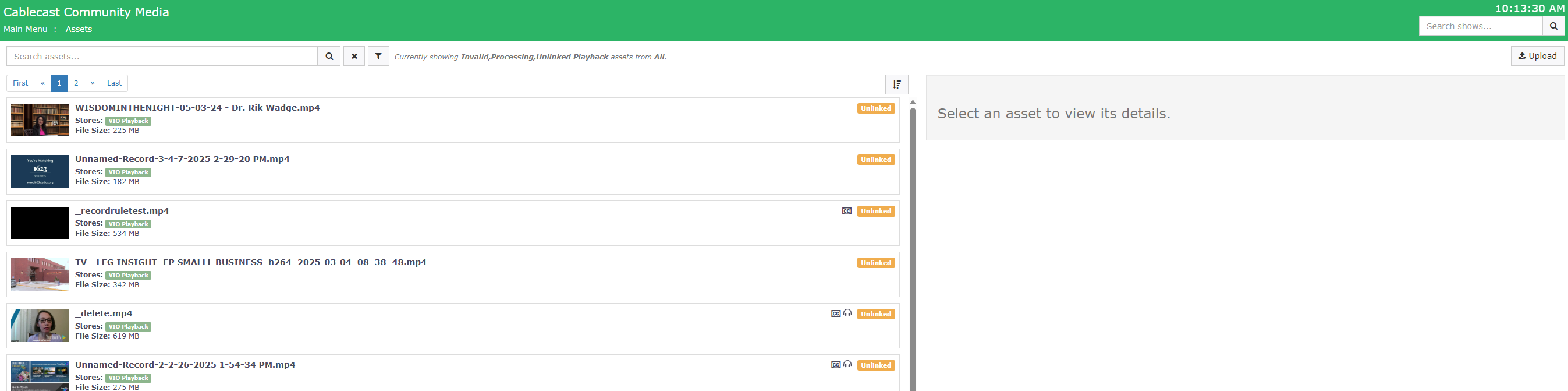
Programs created within your system will have a thumbnail automatically associated with them. Programs migrated from another system may not have a thumbnail right away.
Note: By default, the Assets page filters to show only Processing, Unlinked, and Invalid files. To see all assets, open the filter panel and adjust your selections.
You can also view and manage the asset linked to a specific Show directly from within the Show Record. See Feature Overview: Show Record Redesign for more information.
Search and Filtering
The search bar is at the top of the left column on the Assets page.

Three buttons appear alongside the search bar:
The magnifying glass icon runs a search.
The X icon resets the filters back to the default state (Processing, Unlinked, and Invalid only) and clears any search text.
The funnel icon opens the filter panel.

Clicking the funnel icon opens the sorting and filtering panel.

Use these options to filter what's displayed:
Note: Missing and deleted files are filtered out by default. Check the Show Missing & Deleted Files box at the bottom of the filter panel to include them in results.
Purpose
All — shows all files
Playback — shows files used for playback only
System — shows thumbnails only
VOD — shows Video on Demand files (.m3u8 playback and .vtt transcriptions) only
Store Type
All — shows all files
Active — shows files set for active playback
Backup and Archive — shows files set for backup and archive only
System — shows thumbnails for files
Playback Status (hold Ctrl and click to select multiple)
All — shows all files
Invalid — shows files Cablecast cannot recognize or play
Processing — shows files currently being processed
Unlinked — shows files that are valid but not yet attached to a Show Record
Valid — shows files attached to a Show Record and available for playback
Store — filters by File Store. The options here depend on how your system is configured. See Smart Asset Management: File Stores for more information.
Asset Status — an asset can have multiple copies of a file across different File Stores, and the status can differ on each store. This filter finds assets that have at least one file on a store matching the selected status.
All — shows all assets regardless of status
Available — the file exists on the server
Deleted — the file has been deleted from the server
Expected — a move or copy was initiated, but Cablecast has not yet detected the file in the new location
Missing — the file should be on the server but has been detected as missing; this typically means it was deleted directly via the operating system, or the store has gone offline
Exceeded Storage — the file should be on a cloud File Store, but the available storage has been filled
Deletion Scheduled — an automated deletion has been initiated; deletions are scheduled one week out to protect against unexpected data loss. Note: Deleting a file via the Action button happens immediately and does not go through this scheduled process.
Deletion Pending — a deletion job is scheduled or in progress; the asset will move to Deleted when the job completes
Exceeded Storage Pending — a job is scheduled or in progress; the asset will move to Exceeded Storage when the job completes
Unknown — a temporary state assigned to an asset until it is automatically transitioned to a known status
Click Apply to run the filter with your selected options.

Click Reset to clear all filter selections and return to the default view.

Asset List
Below the search bar, a page count shows how many assets are in your system. Use the pagination controls to browse through them. All assets appear in this list — video files, caption sidecar files, thumbnails, and more.
Each asset row displays:
Name
Store — the name of the File Store the asset lives on, shown as a labeled bar. The bar color indicates the file's status on that store:
Green — the asset is available for use
Orange — the asset is missing from the store; this typically means the file was deleted directly via the operating system rather than through Cablecast
Grey — the asset has been deleted from the store, or a deletion is in progress
File size
Status badge (playback files only) — displays the playback status of the file: Valid, Processing, Invalid, or Unlinked
Some playback files also display an icon alongside their status badge:
CC icon — the file has embedded closed captions
Headphones icon — the file has Multiple Audio Program (MAP) active
Use the sort button at the top of the asset list to adjust how assets are ordered.
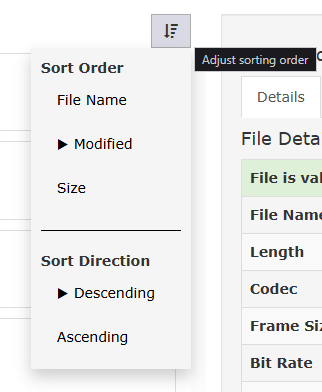
You can sort by Path, Modified date, or File Size, in either ascending or descending order.
Uploading Files
Click the Upload button in the upper-right corner of the Assets page to upload a file directly through the Cablecast interface.

In the upload dialog, choose the file you want to upload, optionally give it a new name, and select which File Store to upload it to from the dropdown menu. Click Upload to begin.

A few things to keep in mind when uploading:
Files are uploaded in 10MB segments and reassembled into a complete file after all segments have been received. There is no file size limit, but uploads will perform better on a faster connection.
The available space on the C drive of your host server must be at least twice the size of the file you are uploading. This is because both the segments and the completed file temporarily exist on the C drive until the file is fully reassembled and moved to the video server.
Upload progress is displayed at the bottom of the screen. You can continue using Cablecast while the upload is in progress, but do not refresh or close the browser — doing so will cancel the upload.
After the upload finishes, it is normal for the file to take one to two minutes to appear in the asset list. Larger files may take a bit longer.
File Details Pane
Clicking an asset in the list opens the File Details pane on the right side of the screen.
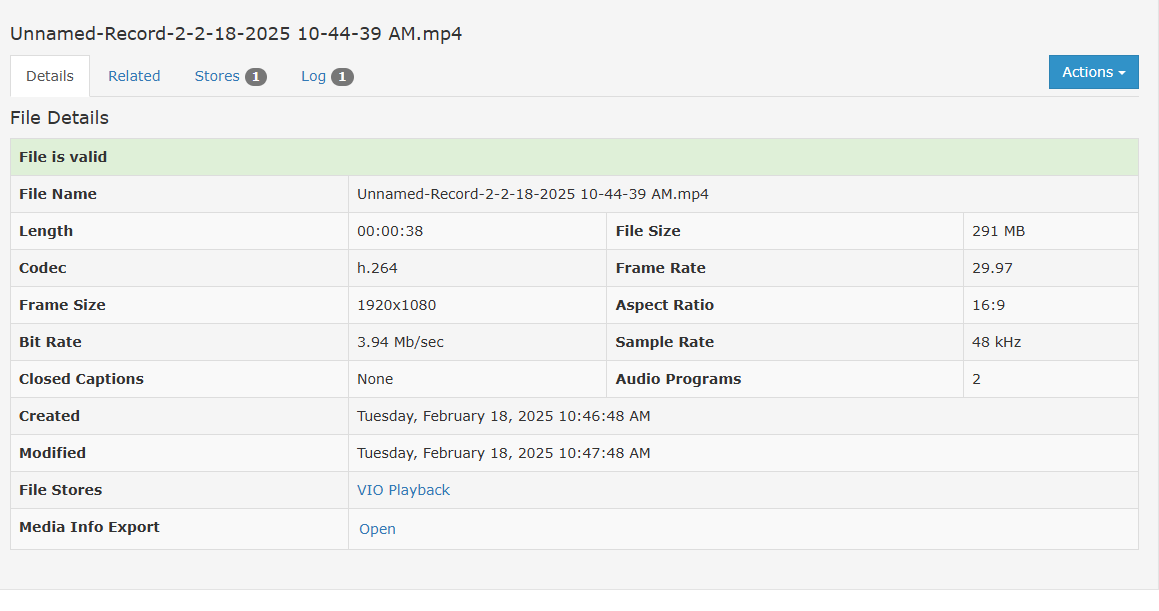
The pane shows the asset name at the top, with four tabs below:
Details — shows file information including validity status, file name, duration, caption presence, date created, and date last modified
Related — shows Show Records the asset is connected to
Stores — shows which File Stores the asset is on, the file's status on each store (available, archived, missing, or deleted), and details about any active jobs
Log — shows a history of system and user activity for the asset, such as when a file was deleted or went missing and when that event occurred
Action Button
Hovering over the Action button in the File Details pane reveals the available options.
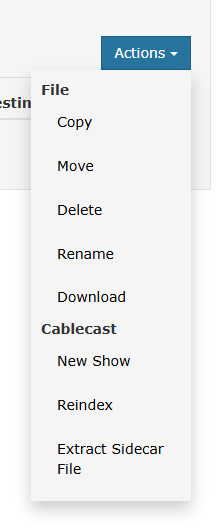
File actions apply directly to the file itself:
Copy — copies the file to another File Store
Move — moves the file to another File Store
Delete — permanently removes the file immediately; this does not go through the Deletion Scheduled process
Rename — renames the file
Download — downloads the file to your computer
Cablecast actions apply within Cablecast:
New Show — available for unlinked files; creates a new Show Record and automatically links the file to it once saved
Reindex — tells Cablecast to reprocess the file; use this if you have replaced a file with a new file of the same name and want Cablecast to make it available for scheduling
Extract Sidecar File — available when the playback file contains embedded captions
Manage Captions — available for valid files; manage automatic captioning settings for the selected file
