Configuring Mail Settings with an Office 365 account
Summary
This article steps through the process of setting up an account for use with Cablecast for things like autopilot reports.
This is for the mail server setup only. To use an already configured email with Autopilot, follow the link below.
https://support.cablecast.tv/s/articles/autopilot---settings--emails
Requirements
Basic SMTP authentication must be enabled
This is a hard requirement to work with office 365, contact your 365 admin to turn on these settings for the account
A 365 organization mail account. This will not work with free-to-use Outlook.com emails as OAuth is unsupported
An email account that can be logged into and security managed by the user. It is recommended this is a separate account
Basic SMTP authentication MUST be enabled by your 365 admin for the account. We do not support OAuth
Password requirements
If using MFA, you'll need to create an app password for your account. This app password will be what you use for the next steps. Microsoft has its own KB for doing so. Record the app password for the next steps
If MFA is not required by your tenant then you may proceed to the next steps with your account password. If you run into authentication issues, it's recommended to turn on MFA and use an app password
Cablecast Mail Settings
Now we're ready to configure Cablecast with your email account.
You'll find the settings under Frontdoor in Server Settings -> Mail Settings

Once open, you'll be greeted with some settings that look like these. Below is a screenshot of my system; you will want to copy the configuration for GMAIL.
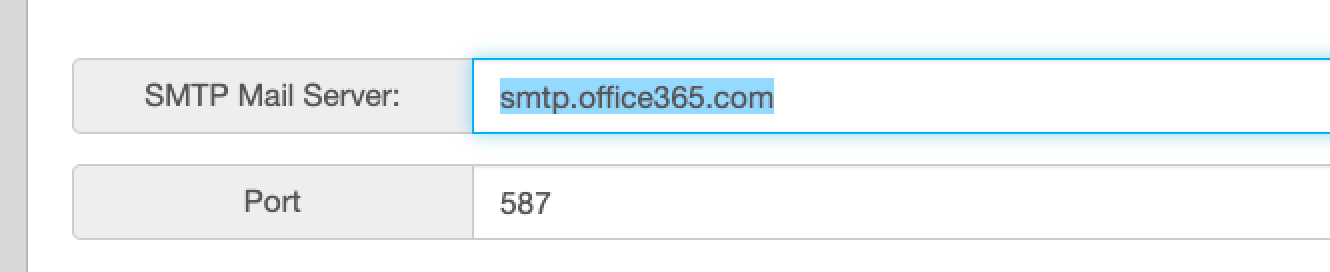
SMTP Mail Server
Text
1
smtp.office365.comPort
Text
1
587Use Authentication and Enable SSL - CHECKED
Username - Your 365 email
Password - Your app password or account password

Bounce Address - Another Email, such as your work one.
Once these settings are entered. Click "Update" to apply the configuration.

When fully configured, your setup will look like this.
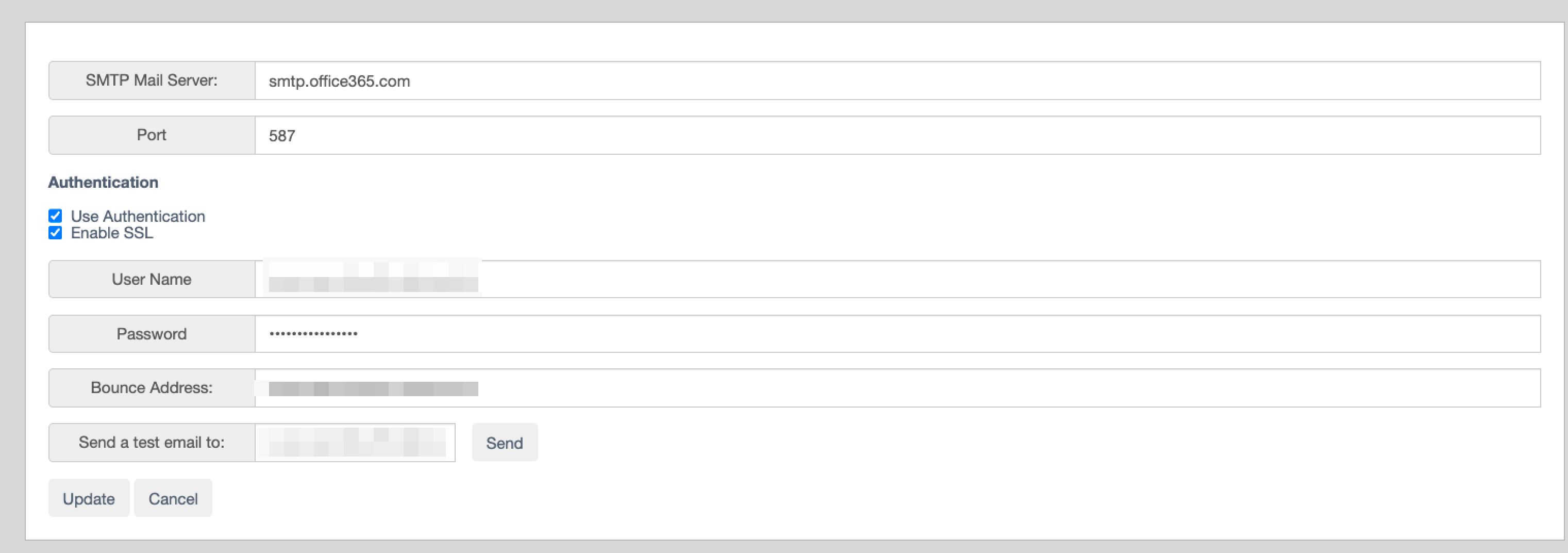
You should be able to send a test email to an inbox and get confirmation. Once this is done, the setup is complete.

