Cablecast 6 Update guide
**Applies to Cablecast v6 and earlier** Overview
The engineering team at Cablecast are always working hard at bringing new features to Cablecast, as well as squashing pesky bugs. Therefore from time to time you will need to update the software installed on your system. This guide will show you how. To perform a Cablecast update will need to go through the following steps.
1. Review your system to determine what equipment needs updating.
2. Request a key from Cablecast.
3. Download and run the installers.
4. Confirm system functionality.
Determining What Equipment needs updating
The First step when updating your system is generating a list of machines that need updating. There are three classes of servers that make up your Cablecast automation system. The type of server and the role it performs will determine which installers need to be run on the server in order to update the software.
Server Classification
Primary server
The primary server can be ether a Pro Server, a ProVOD Server, or a Flex/SX Video Server. The primary server runs the web interface that allows you to administer Cablecast and Carousel. There is only ONE primary server in an entire Cablecast system, and it is the one that you connect to and Login to Frontdoor. The primary server needs Cablecast, Frontdoor, and Carousel (Server Only) installed.
Cablecast Servers (SX/Flex Video Servers, VOD Servers, and Live Streaming Servers)
All cablecast servers including SX Video Servers, VOD Servers, and Live Streaming Servers that are NOT the primary server fall into this class. There can be many of these servers depending on the size of your system. These servers will need Cablecast installed.
Carousel CGs
All Carousel Players and Carousel SDI units fall into this class of server. Generally a Cablecast system will have one of these servers for each of the bulletin board channels in the system. These servers will need Carousel (Player Only) installed.
Finding all of your servers
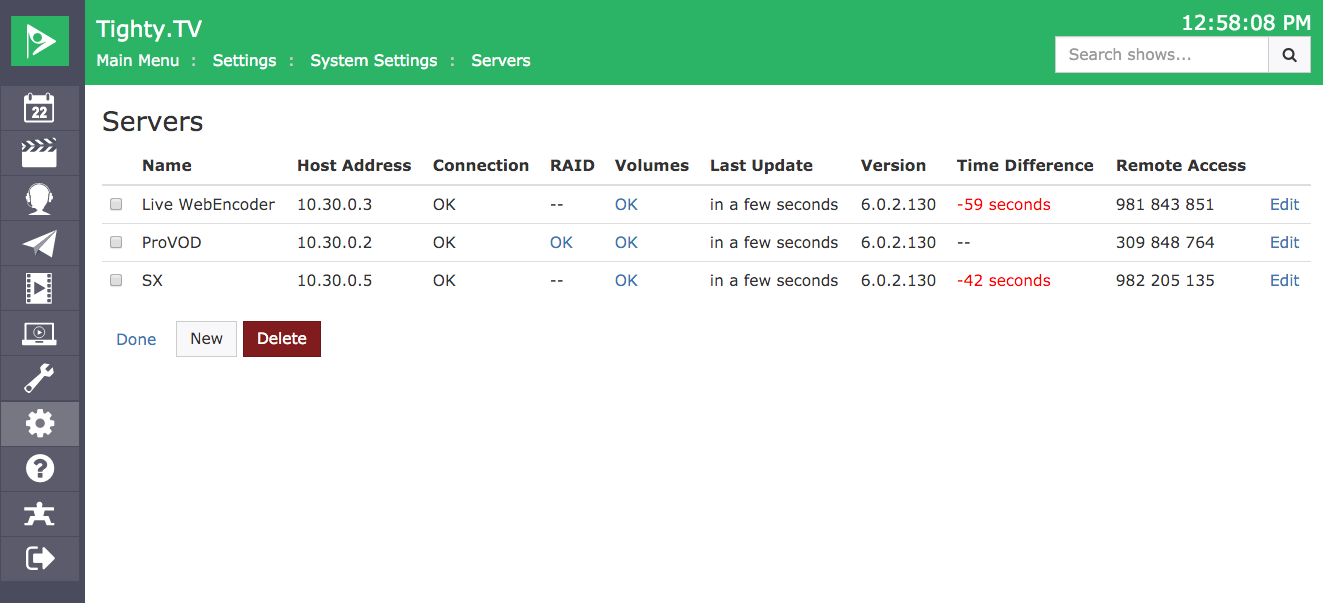
A list of all the servers in a system can be found using the Cablecast and Carousel interfaces. To find the primary server and all the cablecast servers log into Cablecast and navigate to Main Menu -> Settings -> System Settings -> Servers. This screen will list all the servers that need Cablecast installed. One of these systems, usually a ProVOD or Flex Server is the primary server and will also need Frontdoor and Carousel (Server Only) installed.
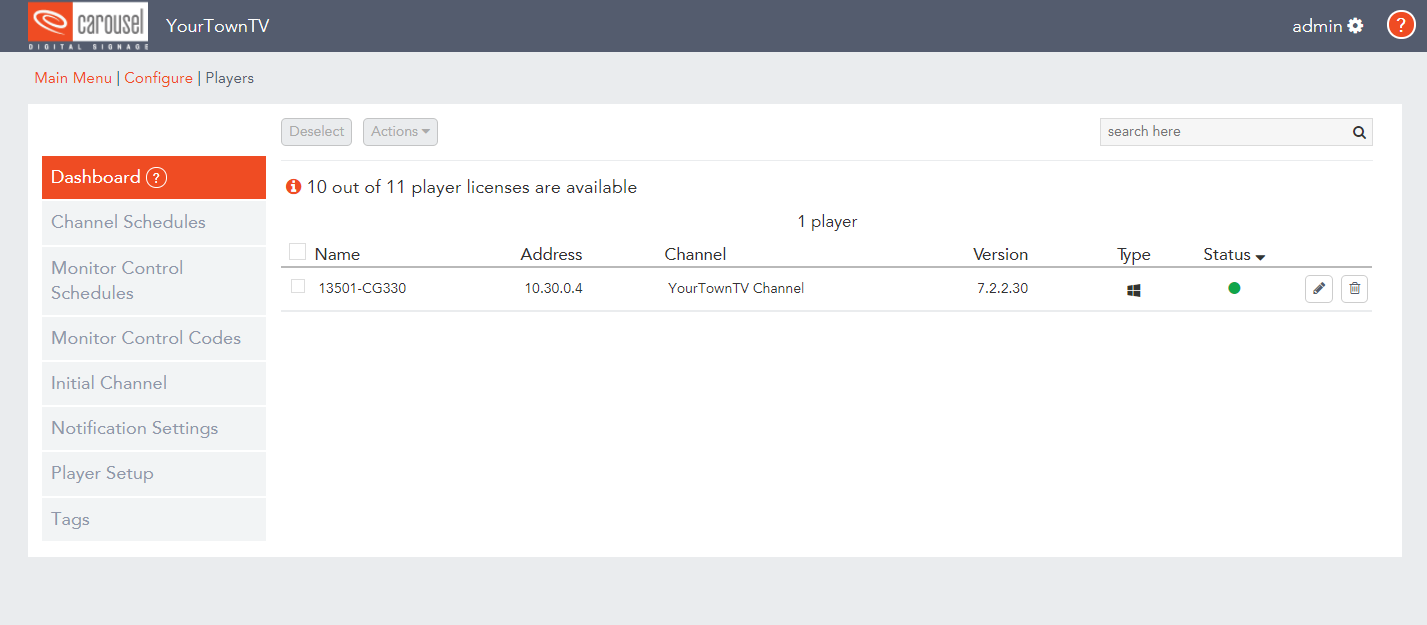
To find all the Carousel CGs log into Carousel and navigate to Main Menu -> Configure -> Players -> Player Status. From here you'll get a list of all the Carousel CG units that are configured for the system. These systems will all need Carousel Player installed.
Requesting an Update Key
If you have received this guide after requesting a key, please skip to the "Downloading and Running the Installers" section.
Once you have your system information in order, you'll need an update key from Cablecast. There are two ways to obtain this.
1. Send an email to support@Cablecast.tv with the following information:
Your Name
Your Organizations Name
Your current version (Find your Software Version Number)
2. Go to https://support.cablecast.tv/hc/en-us/requests/new and generate a new ticket with the same information as above (name, org name, etc.)
Cablecast Support staff will generate you an update key and email it back to you. With update key in hand, it's time to learn where to run the Cablecast and/or Carousel installers.
Downloading and Running the Installers.
There are usually three installers that come with a system update. (two if you are not updating Carousel) They are (“X” is a stand-in for version):
Cablecast_X.X.X.exe
This installer needs to be downloaded on all ProVOD, SX/Flex, Cablecast Live servers. It is the main Cablecast installer so it will need to be run on all of you Cablecast servers. It should not be run on any Carousel/CG players.
Cablecast_Video_Overlay_X.X.X.exe
This installs the Video Overlay App that allows you to add and edit craws and bug text/images. This needs to be installed on all SX or Flex servers (regardless if it is the primary server or not.) It does not need to be installed on any ProVOD or Cablecast Live servers.
Carousel_X.X.X.X.exe
This Installer contains both Frontdoor and Carousel programs.It needs to be run on your primary server first with the only the “Server” box selected. Once the primary server is updated with Frontdoor and Carousel then you will want to run this on any Carousel/CG players making sure the “Player” checkbox I the only one selected.
To review a generic, simple system: Usually a ProVOD or Flex Server will be the primary system and need Cablecast, and Carousel (Server Only) installed. All Cablecast servers will need Cablecast installed and all Carousel CG units will need Carousel (Player Only) installed. A typical system is shown below.
Server
Class
Install Carousel
Install Cablecast
Install Overlay App
ProVOD
Primary
X (server only)
X
Flex/SX
Cablecast
X
X
Cablecast Live
Cablecast
X
Carousel/CG
Carousel/CG
X (Player only)
Starting Your System Installation
The heading is a little misleading because first we are going to talk about what to do right before starting the installation.
Running the installers will stop all automation on your system during installation!
Because of this you are going to want to make sure that the channel(s) is/are on a live source (like a satellite feed or your bulletin board) and that your channel output is overridden so it doesn’t attempt switch during this time.
Your installation will need to start on your primary server. Once you are ready, right click the Carousel installer and select “Run as administrator.” Once it opens you will see this installation wizard.
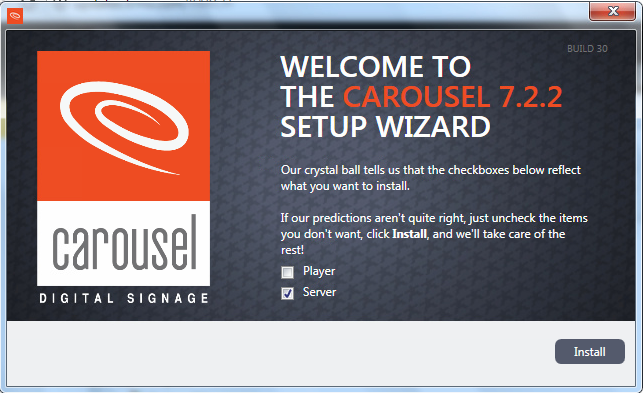
The installation wizards are usually pretty accurate for what type of installation is required for the server it is being run on, however, always double check to make sure that only “Server” is checked when installing it on the primary server.
Once the Carousel Installer is complete on the primary server you will want to right click the Cablecast installer and select “Run as Administrator” and you will get this screen.
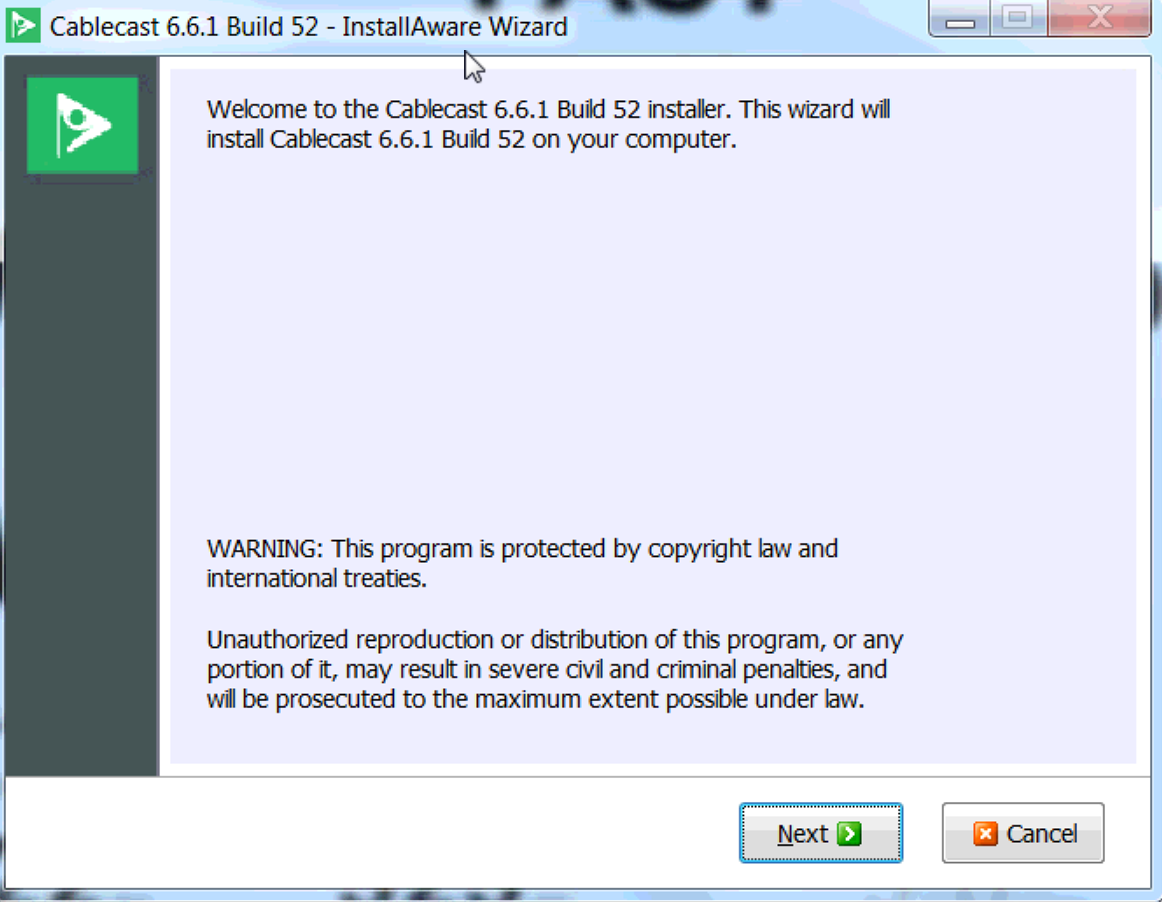
Hit next and you will be brought to a screen to select what account the Cablecast Device Control service will run under.
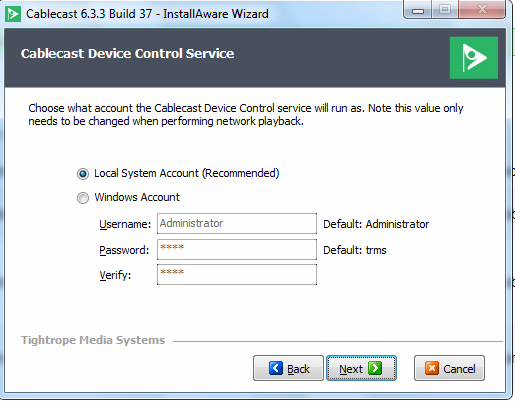
When installing Cablecast where multiple video servers share content ALWAYS run the services under the local administrator account. If you are unsure type "Services" in the Windows search box and open the "Services" panel find the "Cablecast" or "Cablecast Device Control" services.
If the login name is "./administrator" make sure you choose the "Windows Account" radio button above. Otherwise just use "Local System.”
The Cablecast installer may start other program installation (Matrox or Blackmagic drivers/firmware) These are essential for the functionality of Cablecast. DO NOT CANCEL THE INSTALLATION AT THIS POINT! IRREPARABLE DAMAGE COULD OCCUR IF THE DRIVER INSTALLERS ARE CANCELED BEFORE THEY COMPLETE!
Once your primary server is completely updated you will want to update the rest of your system.Make sure that you only install the Video Overlay app on Flex or SX servers and that you check the “Player”box on Carousel or Carousel CG servers.
After you’ve finished all of the installations, you are going to want to go back to the servers page from the “Finding all of your servers” step to confirm that all servers are on the correct version of Cablecast and Carousel.
Confirming the System is Operational
In order to confirm a successful update navigate to Main Menu -> Settings -> System Settings -> Servers in Cablecast and Main Menu -> Configure -> Players -> Dashboard in Carousel and confirm that all connection checks are OK and all CG units are checking in. Finally go to Main Menu -> Autopilot -> Send Autopilot and do an autopilot send. If the send is successful your system upgrade is complete.
If you have any trouble during the update, please contact support@Cablecast.tv for assistance.
Applies to
Cablecast 6.0.0+
(Updated 6/2019)