Cablecast Branded Apps: Google Console Dev Account
Welcome to the first steps on working with us to get your Branded OTT application published to Google and their platforms (Google Play)! For us to work together with you, and publish your application(s), we need you to create a developer account on their "Play Console" for your organization and grant us access.
Before you start
It's strongly recommended you read through these steps in advanced to ensure you understand all the criteria required.
Have a photo or scan of a valid ID ready, as Google requires this for verification. This can be skipped, but its required for publishing your application, so its best to get it out of the way and can take up to 2 days to be verified.
Payment of $25 is required as part of the account creation process
Setting up account
You'll have to create an account on the Google Play Console. This is where you'll manage everything related to your application on their "Play Store". Please note this process will require a $25 registration fee and verifying your personal identity (drivers license, etc).
Navigate to the Google Play Console signup page and login/signup
You can create a google account without using Gmail using these steps.
Create your developer account
Choose "An organization or business" for the developer account (unless otherwise specified)
Populate the "organization" details (Developer name, Organization name, address, etc).
Remember, this should be of your organization, not of yourself personally.
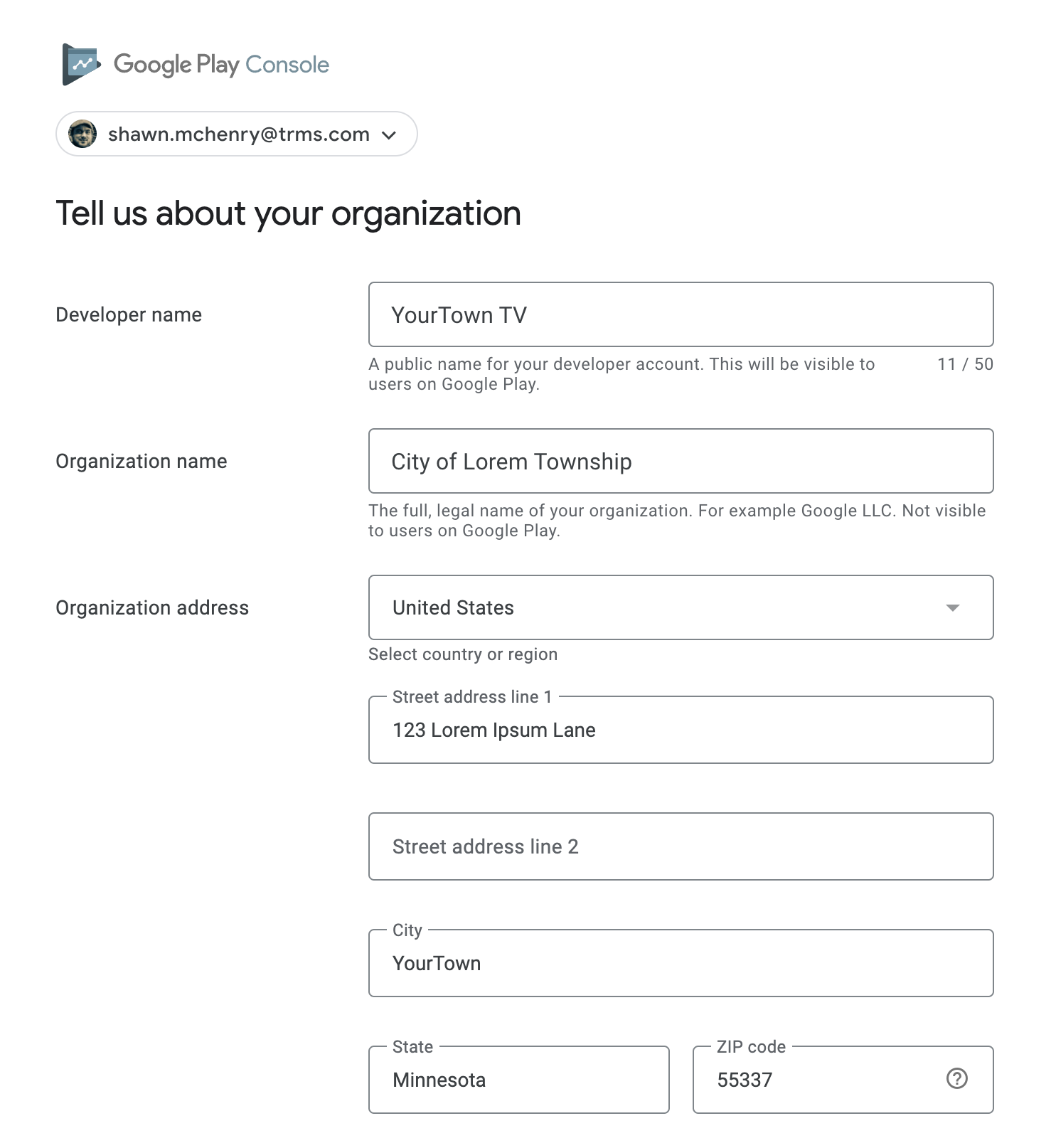
Populate the contact name and contact info (this should be yourself and a actively monitored email/phone)
You'll have to complete some verification steps for your email & phone number. So make sure these are valid destinations that you have access to.
Read & Accept the terms and conditions
Click "Create account and pay"
Verify and Pay
You'll be prompted to pay for the registration with a credit/debit card. A receipt will be emailed.
Upon successful payment, you'll be prompted with a "Developer account created" screen.
Click on "Go to dashboard"
Verify ID
On your dashboard, you'll be presented with a action item for "Verify your identity". Click on "Verify ID" to complete these steps.
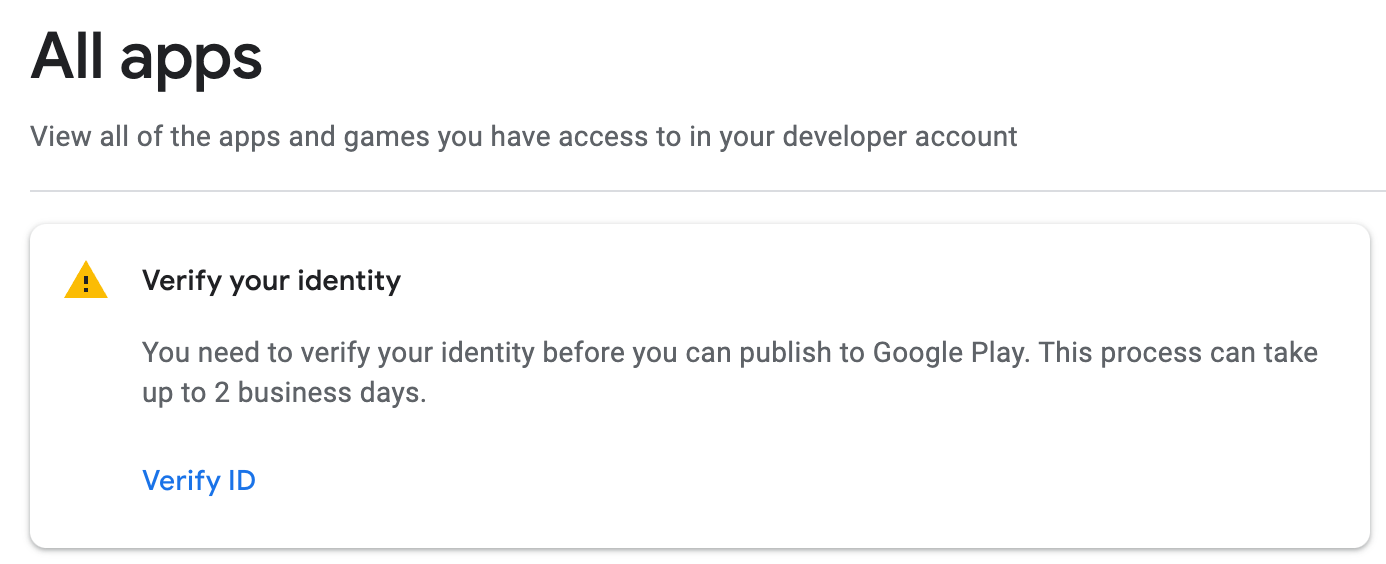
You can skip this if you're not ready to complete this step, but it must be completed before your application is published to the Google Play Store.
Create your application
This is the step that will define (at a high level) how your application will show up on the Play Store. Additional details (description, images, etc) will be completed later in the process of your application being published.
On the dashboard, you should see "Create your first app". Click on "Create App".
Define criteria
App Name
App or Game: Choose "App".
Free or paid.
Be certain what you want. You cannot change from "Free" to "Paid" later.
Accept the Declarations and terms.
Inviting Cablecast Engineering
This step is required so we can build and publish your application for you, on your behalf.
Navigate back to your Play Console Dashboard
Click on the left "Users and Permissions"0
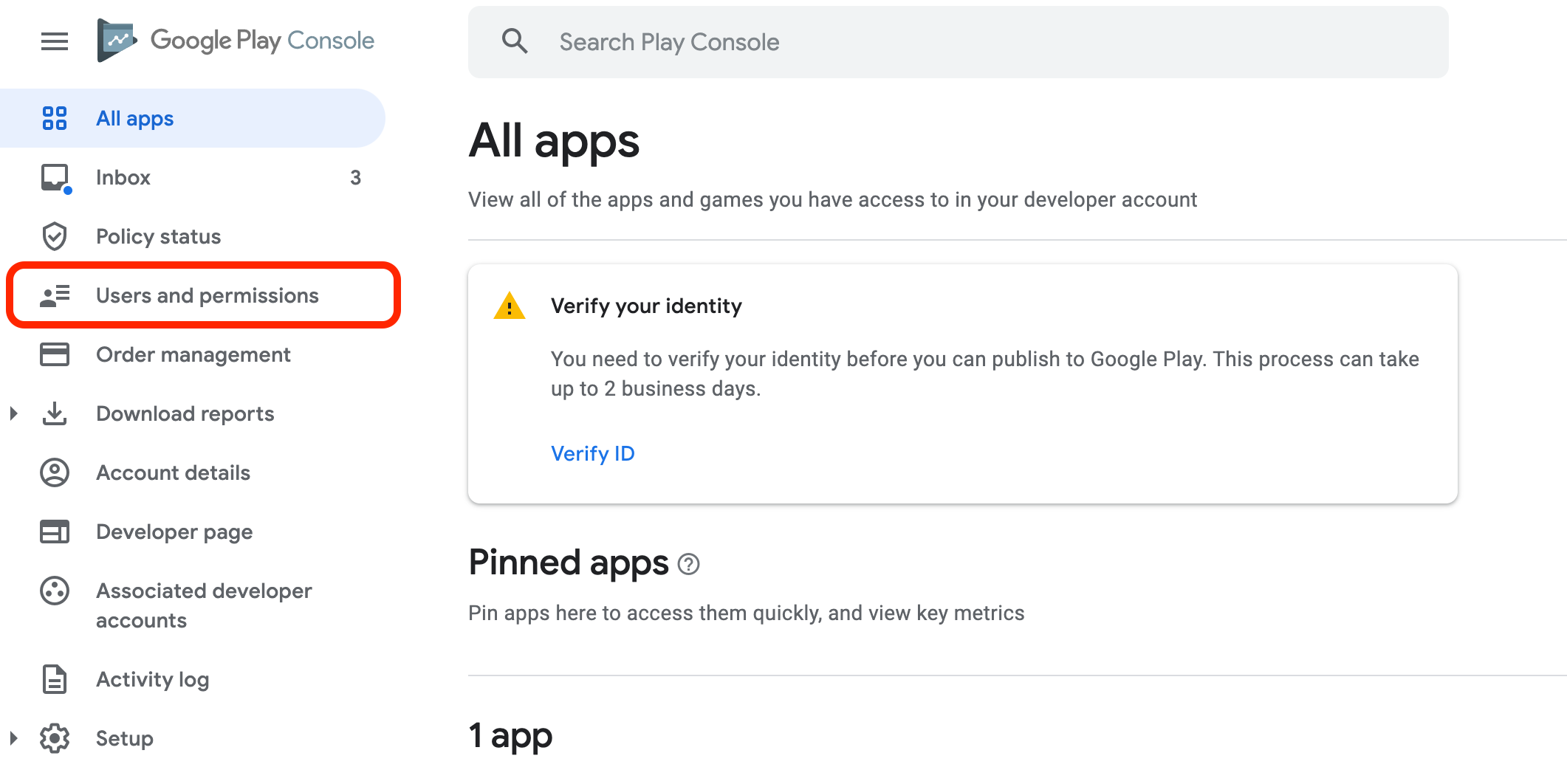
Leave "Access Expiry" unchecked (we need prolonged access to rollout updates, and other changes)
Click on "Invite new users"
Add our cablecast dev account email: developers+google@cablecast.tv
Define App permissions
Click "Add app"
Select the app you created earlier in step 5
App Access: Select "Admin" (all permissions)
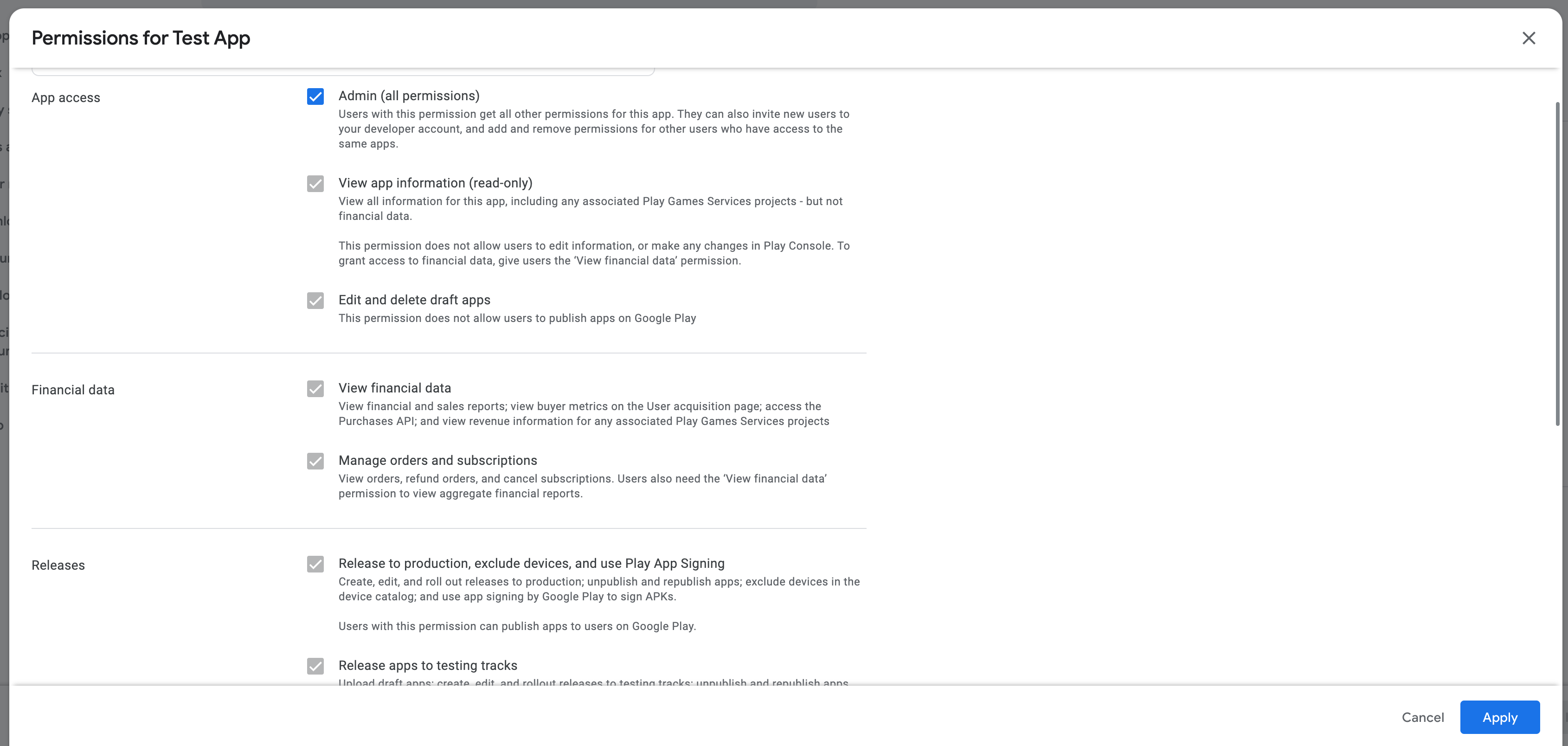
Click Apply
Click "Invite User"
You're done! Please let us know once these steps have been completed, and we'll get in touch once we're ready with the next steps of deploying your application. You may refer to the Google Play Console help docs if you're interested in learning more about different sections of the play console. Otherwise, We'll help you with all the required steps along the way.