Autopilot Reports
Viewing Reports
You can view detailed reports about your Autopilot sends from the Autopilot section of Cablecast.
To view reports:
Go to Autopilot in the left-hand menu.

Select Autopilot Reports.

The Autopilot Reports page shows the last 15 Autopilot sends. Each report includes the following information:
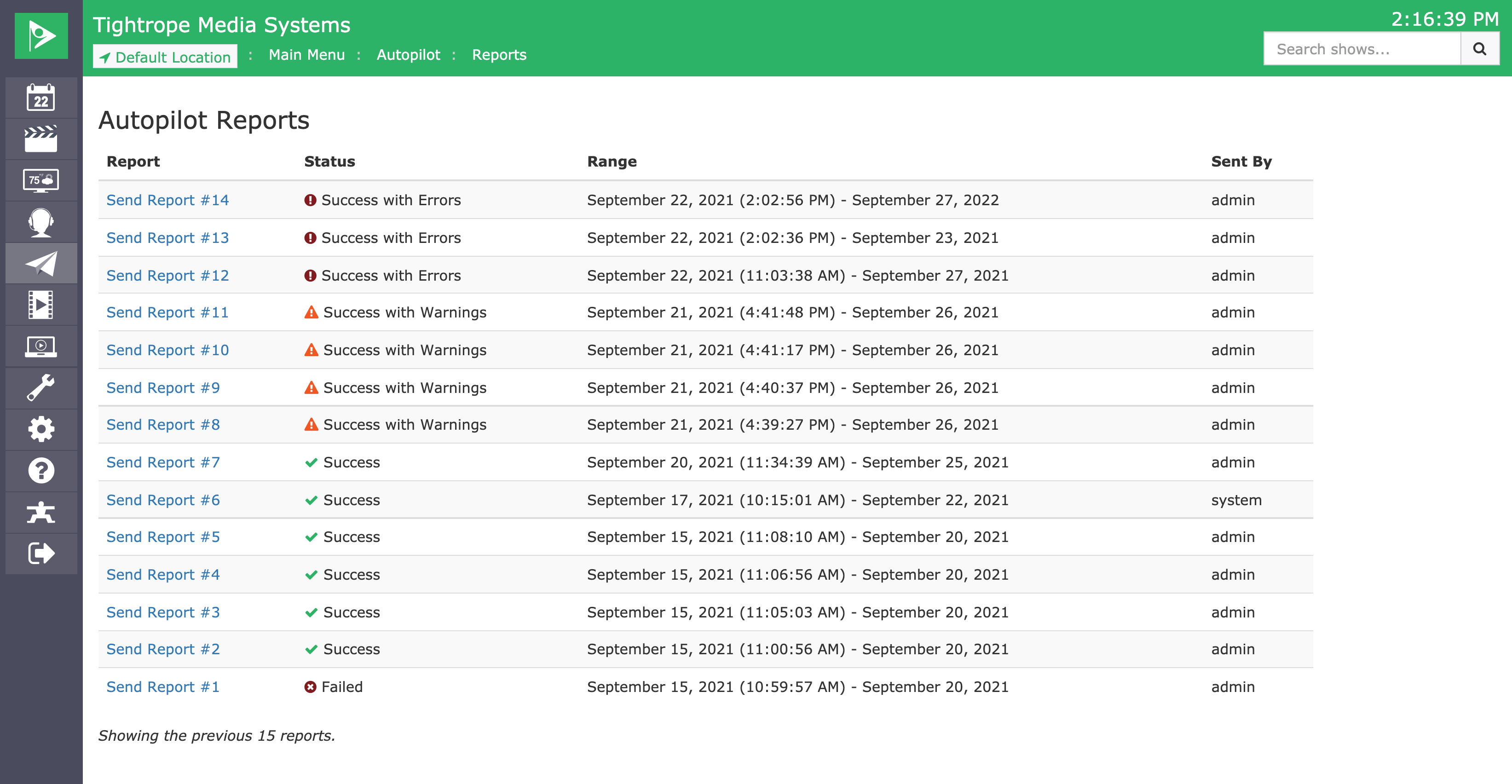
Report Number — A unique number assigned to each send, which increments with each new send. Select a report number to view its details.
Status — The result of the Autopilot send. Possible statuses are:
Queued: The send is in progress. Larger sends may remain in this status longer.
Success: The send completed without warnings or errors.
Success with Warnings: The send completed and your schedule is valid, but there are some warnings about playout or events. These warnings are unlikely to have a major impact on playout, but it's worth reviewing them.
Success with Errors: The send completed, but there are problems that will affect playout. Review the messages, resolve any conflicts, and resend Autopilot.
Failed: A significant issue prevented the send from completing. Review the messages to identify the cause, resolve the issue, and resend Autopilot.
Range — The date range covered by the send. All Autopilot sends run through the end of the day on the selected end date.
Sent By — The user account that triggered the send. This is especially useful for systems with multiple users.
Note: If a report shows Sent By: system, the send was triggered automatically. To learn more, see Autopilot Settings & Emails.
Report Detail
Select a report number to open its detail view. The detail view has three tabs: Info, Messages, and Events.
Messages
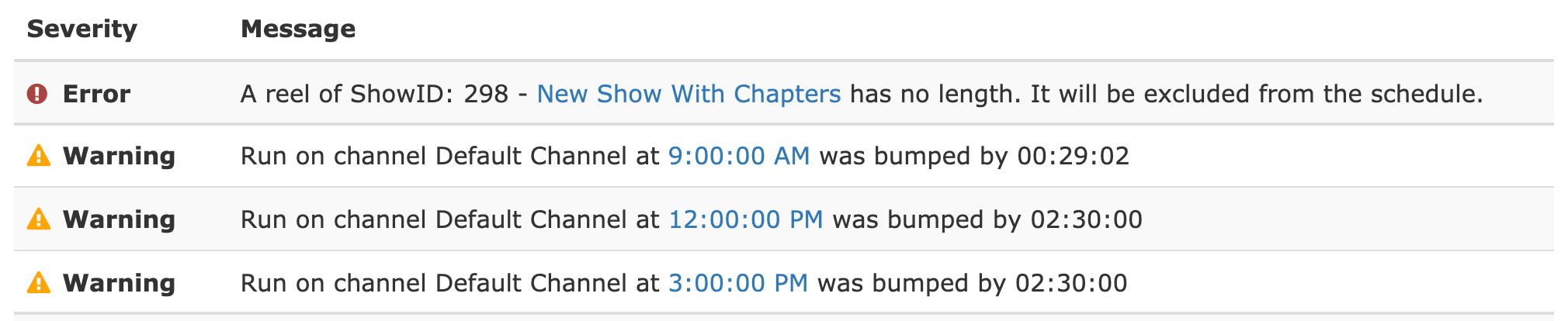
The Messages tab shows detailed information about items in the send. Messages may highlight things that need your attention or prompt you to resolve issues before the next send.
If a report contains many messages, use the filters to focus on what matters most:
Severity — Filter by message severity. If the send failed, this defaults to showing only failures.
Type — Filter by message type. Message types include things like RAID issues, disk space warnings, run bumps, missing files, and more. You can search within this dropdown to find a specific type.
Some messages include contextual links to help you navigate directly to the area that needs attention. For example, a run bump message includes a timecode link that jumps to that location in your schedule.
Events

The Events tab lists the playout events included in the send. These events tell your video server how to behave for each item in your schedule.
This tab is primarily useful for troubleshooting playout or device issues.
Tip: Not sure what a message means? See Cablecast Autopilot Messages for a full reference.
