Streaming in HD Cable Provider in SD
Applies to
Cablecast 5.4.0+
Answer
In most cases with Cablecast, You have a Standard Definition channel with your cable provider, but want to stream on your website in HD.
This article is merely a high-level overview of how to achieve this. For assistance, Contact your dealer that performed the installation of your Cablecast system.
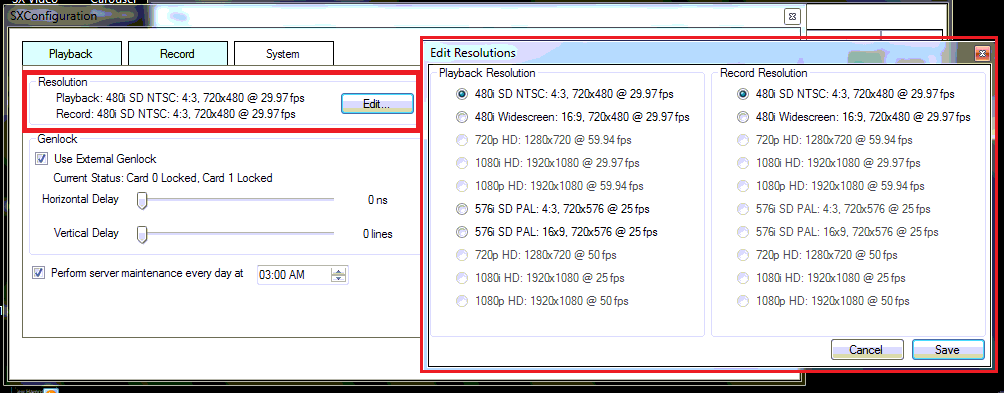
To do this, you must have everything coming out of your Cablecast server set to HD which can be configured in the "SX Configuration" application (this must be done directly on the server, this cannot be changed in the Web UI).
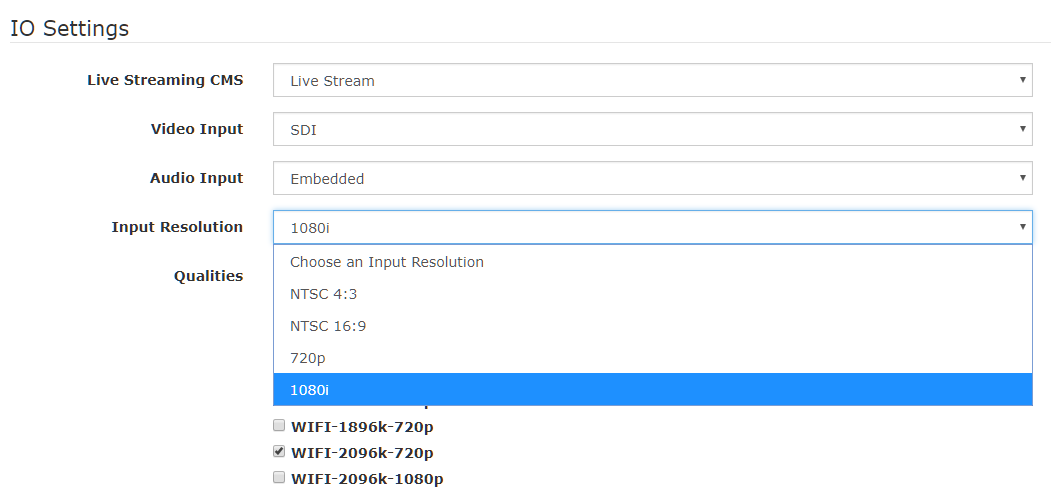
You may have to configure your Cablecast live unit to change from NTSC to 1080i. This can be done by navigating to "Settings" > Location Settings > I/O Tab > Live Streaming. Then, for each stream, edit to change "Input Resolution" to either 720p or 1080i.
Then up to the point before sending your signal to the Cable Provider, use a third-party solution to down-convert your HD-SDI signal to whatever your cable company requests.
To get assistance with doing this, it would be best to contact your dealer that installed your Cablecast system.