VOD Chaptering Feature Overview
Note: A VOD server is required to use this feature.
VOD Chaptering lets you add navigable chapter markers to both live events and pre-recorded files. Viewers can use these markers to jump to specific points in your video on demand content.
Chapter Live Events
To access the live chaptering interface, go to Internet Video > Chapter Live Events. The index screen lists upcoming shows that are VOD-enabled but do not yet have complete VOD files. To begin chaptering, click the Chapter button for the show.
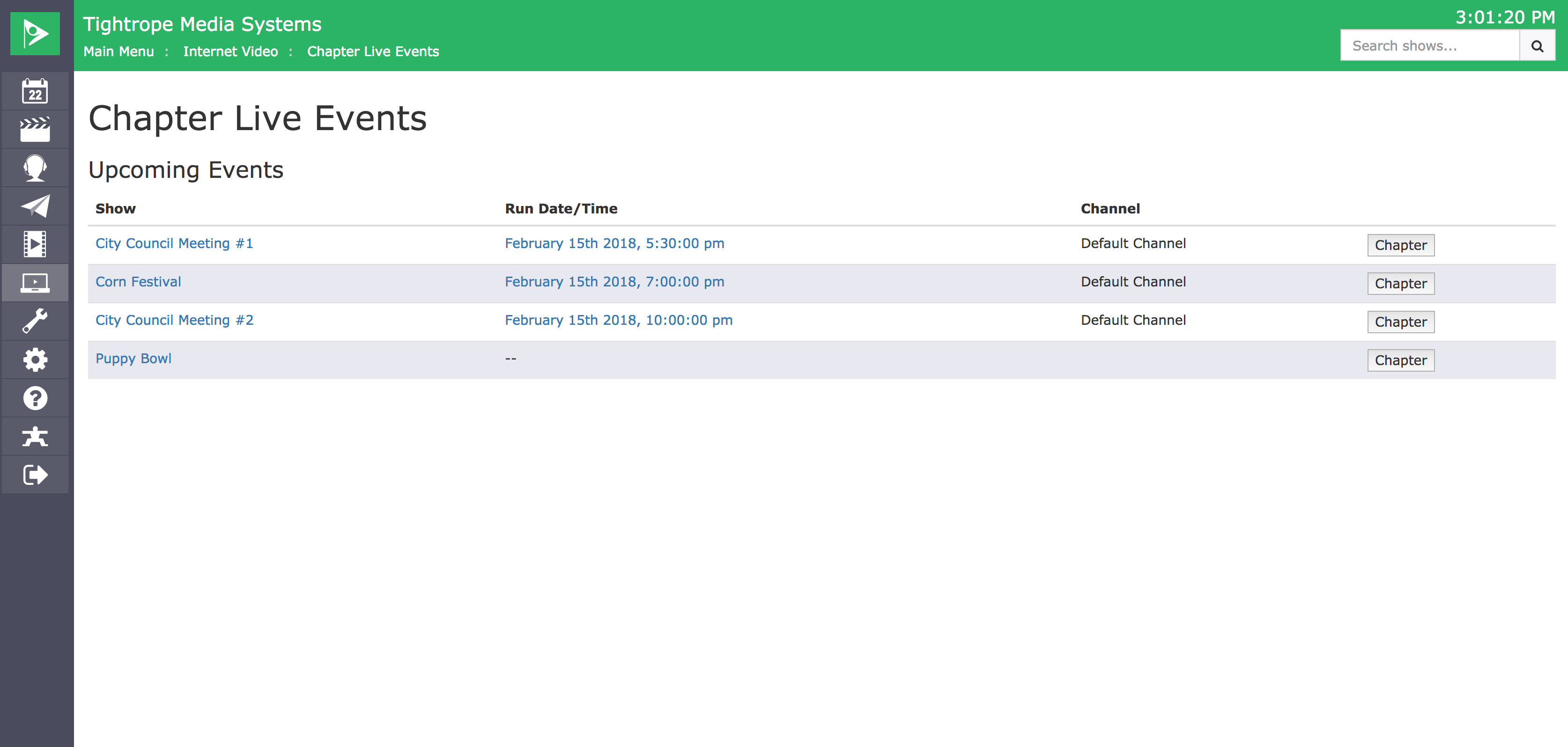
Clicking Chapter navigates to the VOD details page and enables the Agenda tab and buttons for the live chaptering clock.
Note: Live chaptering features are only available after clicking Chapter in the Chapter Live Events screen.
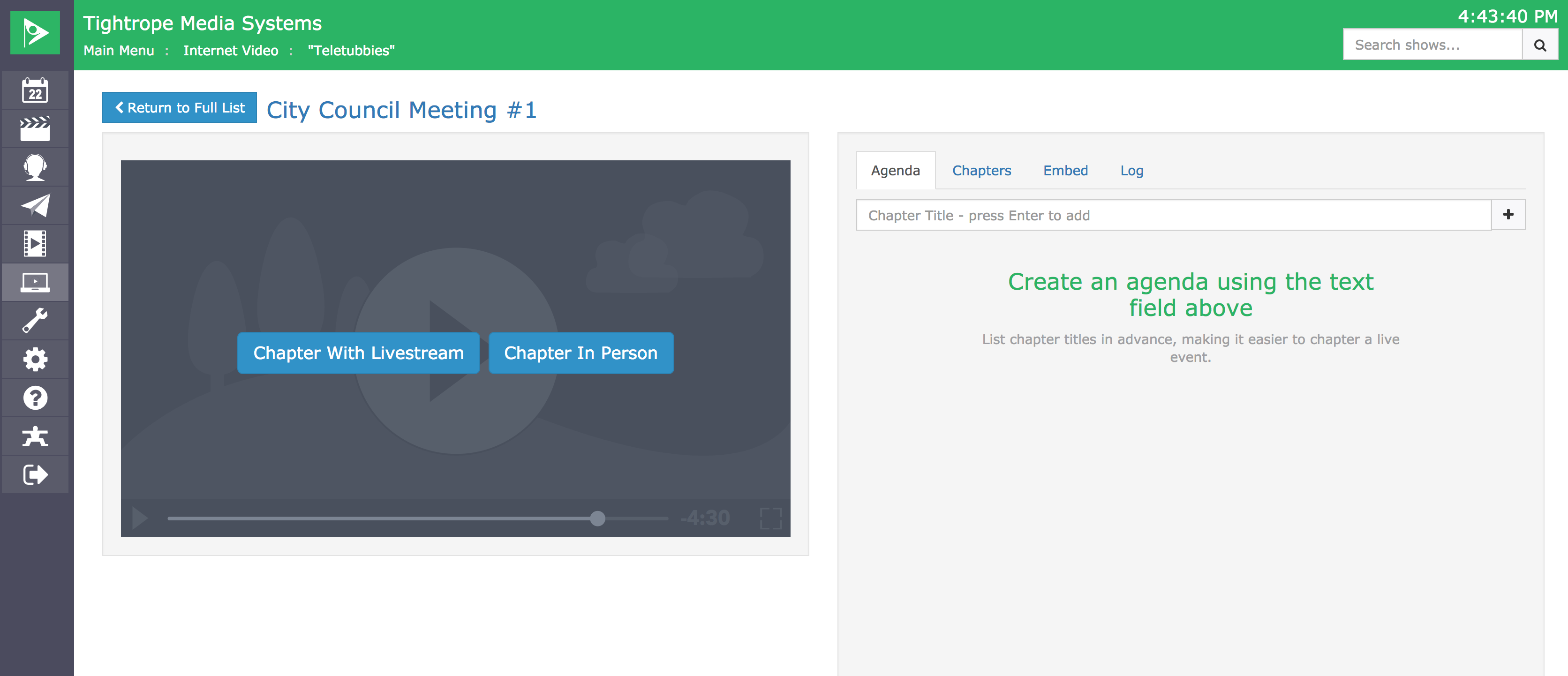
The Agenda tab can be used to create chapters in advance of an event. As each chapter is marked during the live event, it transfers from the Agenda tab to the Chapters tab.
Chapter With Livestream
This option lets you chapter the meeting using your Cablecast live stream. It's best for situations where you can't be in the same room, since chapters will sync with the scheduled start time of the live event.
Chapter In Person
This option is intended for use when you're physically present at the event. Starting the chaptering process starts the timer immediately, so begin chaptering when the event starts if you want chapters to sync with the playback file.
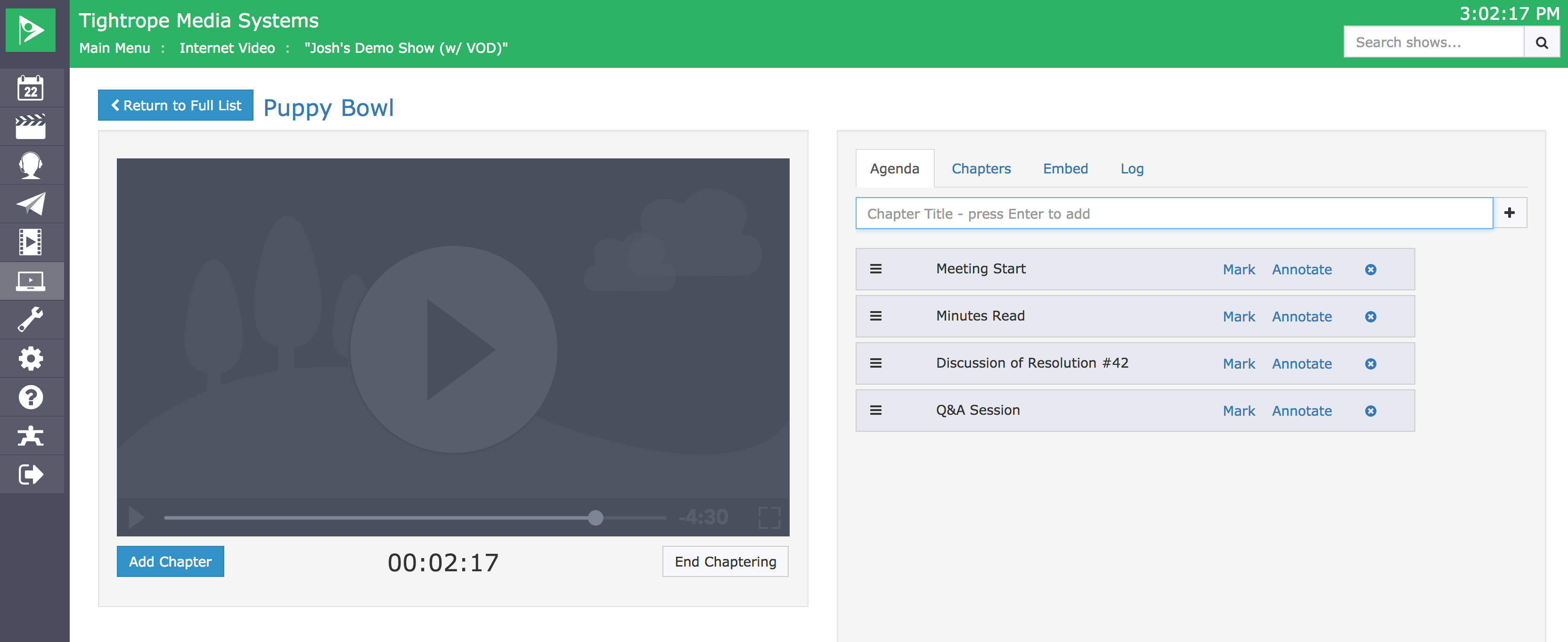
Once the chaptering clock has started, the Mark button is enabled for each chapter in the agenda. Click Mark for each chapter during the live event to set its timestamp to the clock's current time. You can also add new chapters using the Add Chapter button to the left of the clock. When the session is over, click End Chaptering to stop the clock and complete the session.
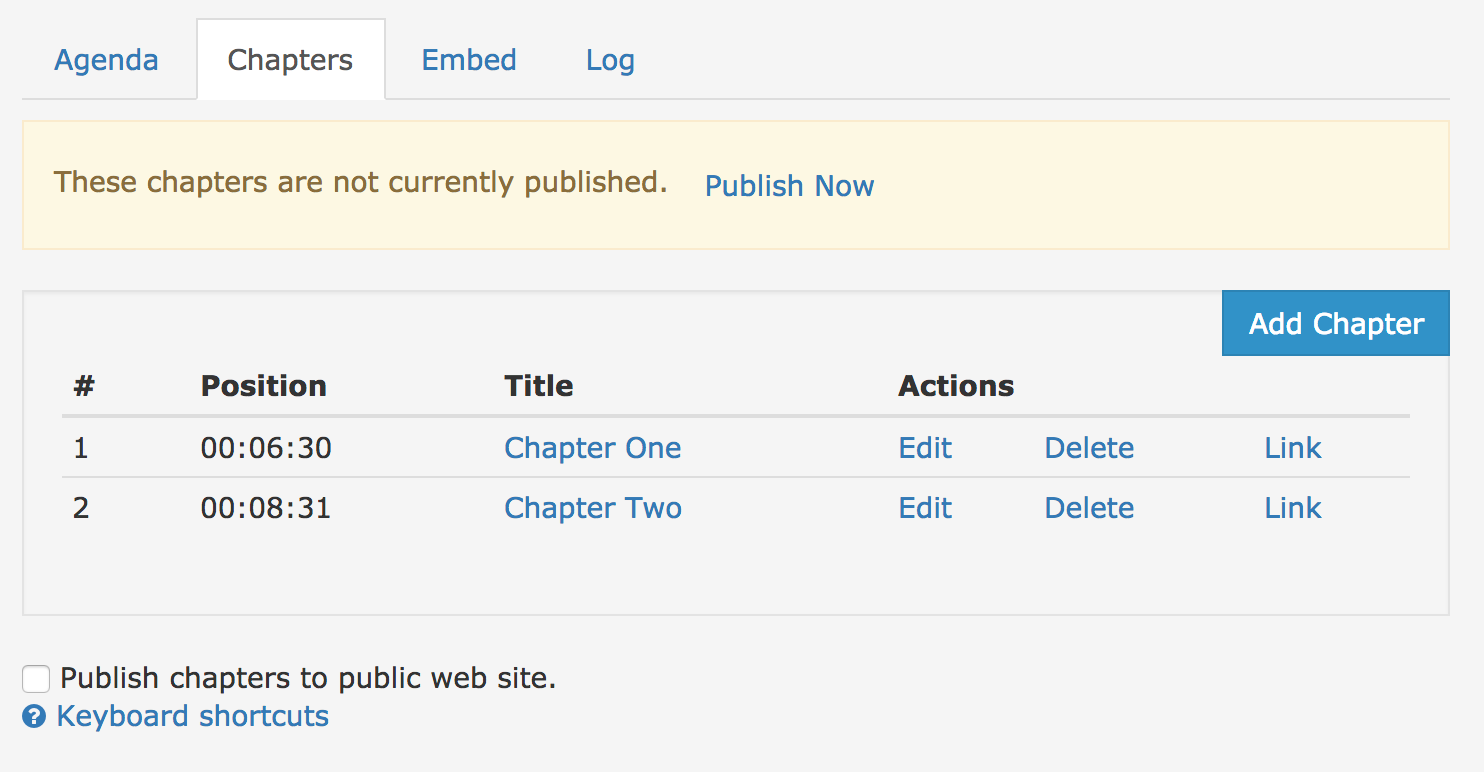
By default, chapters created in the live chaptering interface are unpublished drafts. Click the checkbox at the bottom of the Chapters tab to publish them to the public site. VODs with unpublished chapters also appear in a separate list on the Chapter Live Events index page.
Chaptering Pre-Recorded Files
You can also add chapters to pre-recorded files. Go to Internet Video > Video on Demand and locate the show you want to chapter. Click the Chapters tab in the panel to the right of the video. You can either play the file and scrub to the point where you want to add a chapter, or manually enter a timecode if you already know it. Click the blue Add Chapter button to the right of the panel to open the chapter entry dialog.
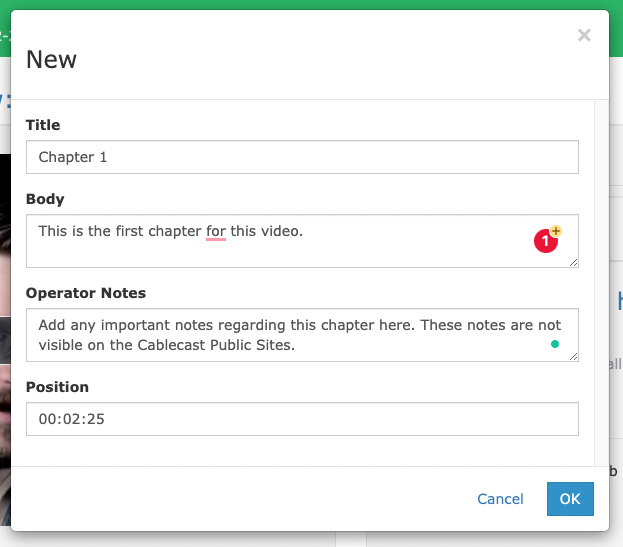
Enter a Title, Description, and any Operator Notes (these are not visible to the public), then enter the timecode for the chapter marker. Click OK to save.
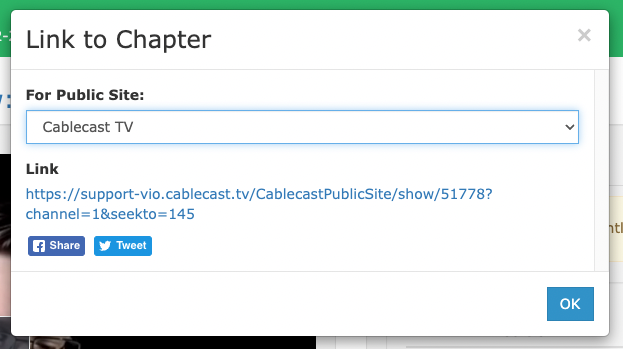
To edit a saved chapter, click Edit next to the appropriate chapter. You can also Delete chapters or get a direct link to a specific chapter using the Link option.
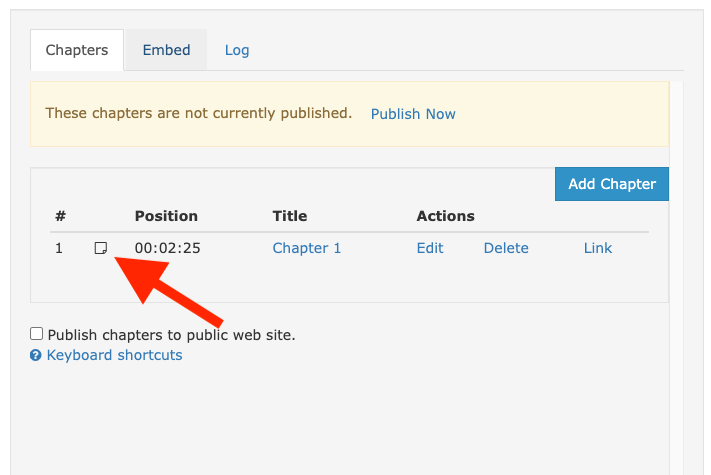
If you've added operator notes to a chapter, a small icon appears next to its Position marker in the Chapters tab. Click the icon to view those notes.
Note: You can also access the chaptering interface for pre-recorded files directly from the Internet Video tab in a Show Record. The chaptering options are the same. Live event chaptering is only available through Internet Video > Chapter Live Events and cannot be initiated from the Show Record.

By default, chapters created in the chaptering interface are unpublished drafts. Click the Publish Now link at the top of the Chapters tab to publish them to the public site.
