Fill Gaps
Fill Gaps allows operators to quickly fill the spaces between scheduled runs with filler programs — without needing to individually select and schedule each one. It uses saved searches to randomly pull content, and includes options for customizing what plays at the beginning and end of each gap. Runs inserted by Fill Gaps are grouped and collapsed in the schedule to reduce clutter.
Video Overview
Watch: Fill Gaps — Cablecast Training Video
Filling an Individual Gap
To fill an individual gap, select the Fill Gap button at the start of any gap. A dialog will appear prompting you to choose the saved search to pull content from.

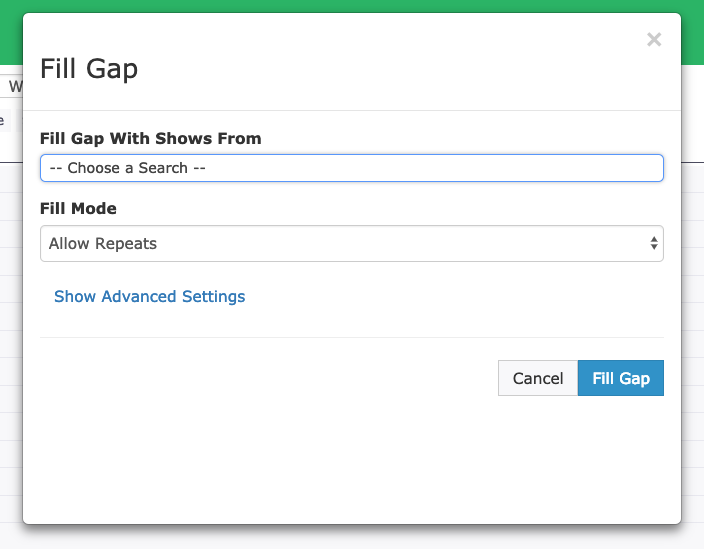
The Fill Mode setting controls how the gap is filled:
Allow Repeats — Allows the same Show Records to be used more than once in the same gap, but only if no other content would fit. The algorithm will avoid playing the same content back-to-back where possible, but may do so when the content pool resets.
Do Not Allow Repeats — Will not use the same Show Record more than once in a single gap. If the algorithm runs out of content before the gap is filled, it will stop and leave the remainder of the gap in place.
Filling a Date Range
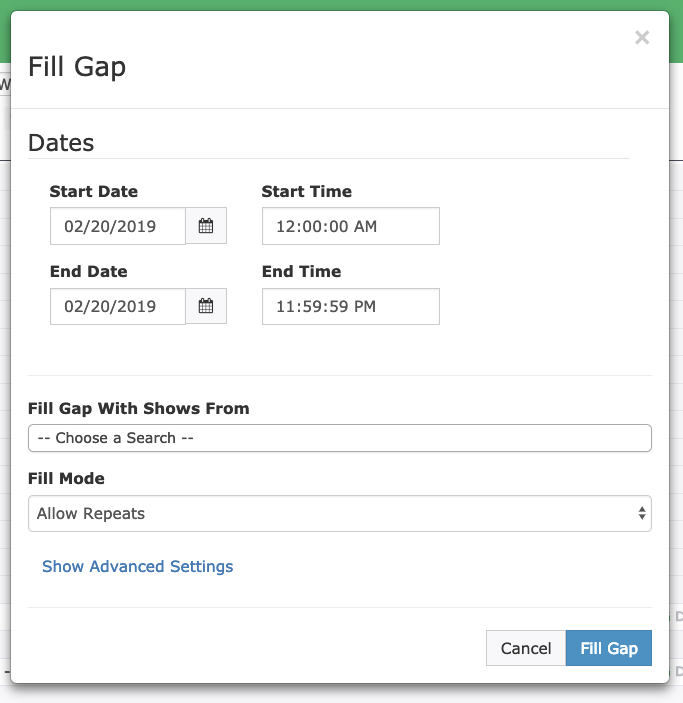
To fill all gaps across a date range, select the Fill Gap button in the toolbar. This opens the same dialog as above, with date and time selectors so you can target part of a day or an entire week.

Using Advanced Settings
Selecting Show Advanced Settings reveals additional options for customizing gap fill behavior.
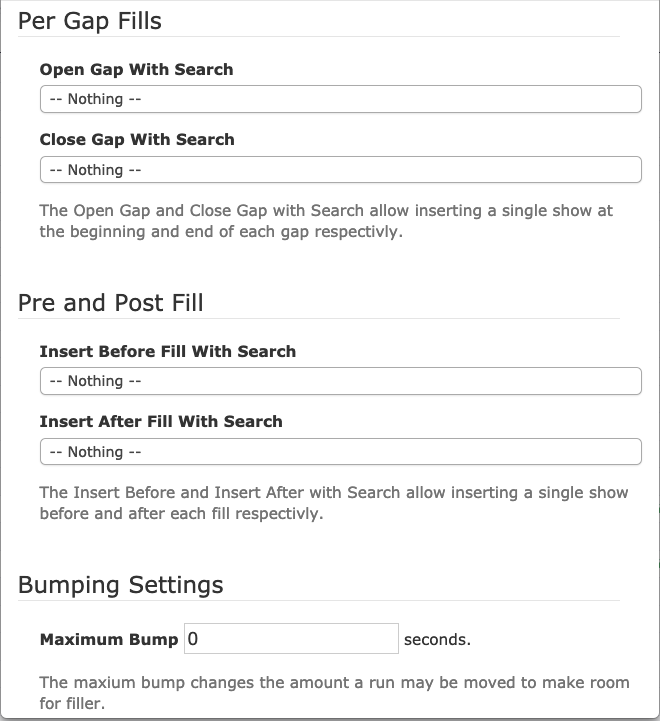
Per Gap Fills use a designated saved search to insert a single randomly selected Show Record at the beginning and end of each gap.
Pre and Post Fill use a designated saved search to insert a single randomly selected Show Record before and after each individual filler item.
Bumping Settings control the maximum bump — the amount of time a scheduled run can be moved to make room for a filler run. For example, if there is a seven-second gap but the shortest Show Record in the filler saved search is ten seconds, and the maximum bump is set to more than three seconds, the filler will be inserted and the scheduled run bumped by three seconds.
Filler in the Schedule
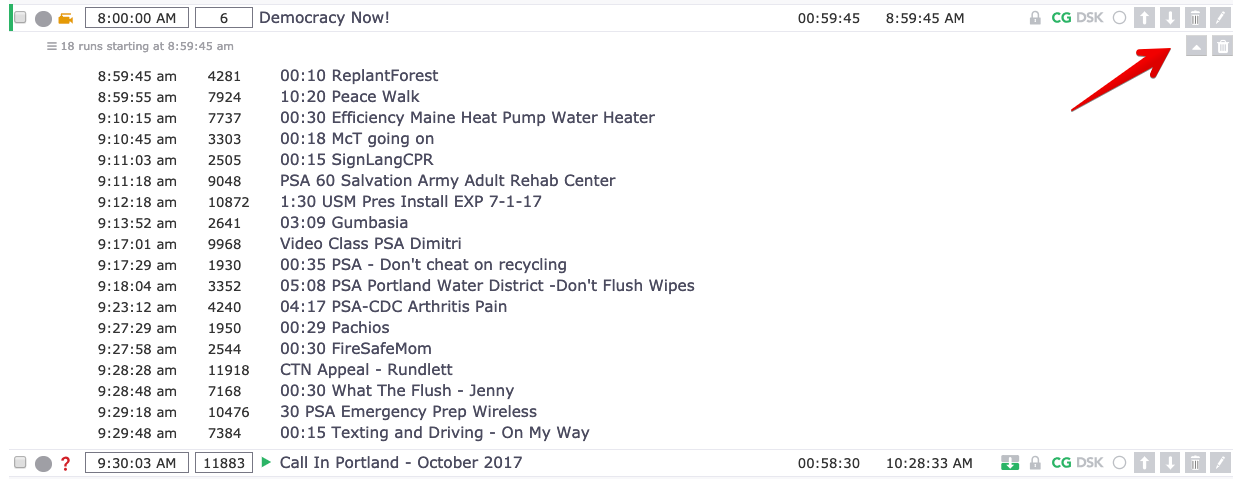
Show Records inserted by Fill Gaps are grouped together and collapsed by default to reduce clutter. For example, eighteen filler runs between two scheduled programs would appear as a single collapsed block.

To expand a filled block and see the individual runs, select the arrow button on the right side of the block.
Clearing Filled Blocks
When last-minute schedule changes are needed, filled blocks can be cleared and re-filled after adjustments are made.
To clear a single filled block, select the trash can button on the right side of the block.
To clear all filled blocks for an entire day, select the Clear Gaps button in the schedule toolbar.


Summary
Fill Gaps automates filler scheduling by using saved searches to populate gaps between runs — individually or across a date range. Advanced settings give you control over what plays at the start, end, and around each filler item. Filled blocks are collapsed in the schedule for a cleaner view and can be cleared and refilled at any time.
