Closed Captioning Testing and Troubleshooting Tips
This article explains how to test caption output in Cablecast and troubleshoot common issues that can prevent captions from appearing on your cable channels and live streams.
Before You Begin
If you haven't used captioning with Cablecast before, start by testing with a known good file — one that already has captions embedded — before trying to caption your own content. Cablecast provides a two-minute excerpt from an episode of Democracy Now with embedded captions for this purpose. Download the test caption file to get started.
Test Caption Output to Your Cable Channel or Live Stream
Play the test file and watch for captions on your cable channel or live stream.
If captions appear: Your system is ready. You can proceed with using Cablecast captioning on your own content.
If captions don't appear: Check whether any converters downstream of the Cablecast hardware are capable of passing captions.
Note: Blackmagic converters typically strip captions. If you have any Blackmagic converters in your signal path, they are likely preventing captions from reaching your cable channel or live stream. Contact your vendor or integrator for guidance on compatible alternatives. Many stations have had success with Decimator 2 converters, though your integrator will know which options are best suited to your configuration.
If you've confirmed that your downstream hardware is caption-compatible but you're still not seeing captions — or if you're seeing garbled text — contact Cablecast Support for further troubleshooting assistance.
Note: In some cases, the cable provider's equipment may not be capable of passing captions. If that's the case, you'll need to work with your cable provider to make the necessary hardware upgrades.
Verify Caption Output from Your Video Server
If you have an encoder configured in Cablecast, you can use it to confirm that captions are outputting from your video server — independent of any downstream hardware.
Play the test caption file on your Cablecast system.
Route the applicable output of your video server to your encoder and perform a test encode.
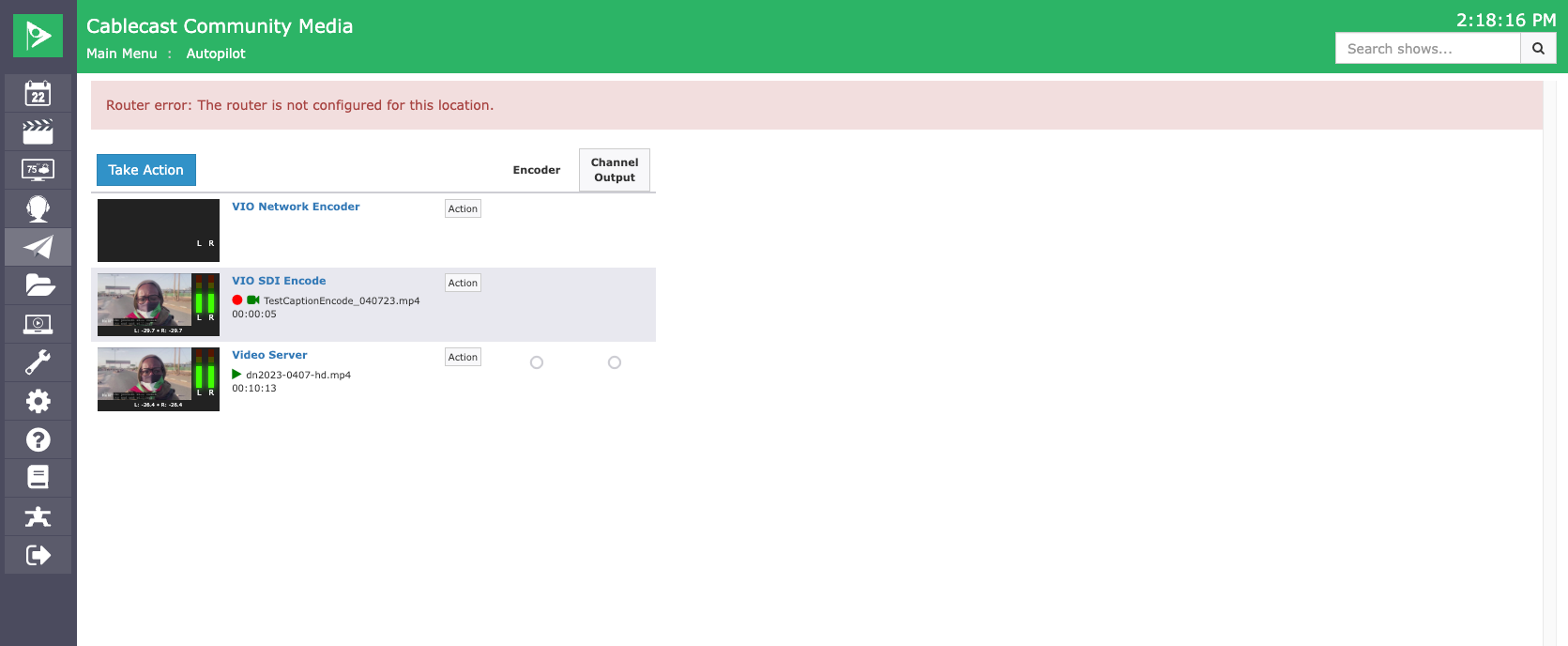
Once the encode is complete, open the Assets section of the Cablecast interface and check the Digital File Info for the encoded file.
If captions are listed as present in the Digital File Info, captions are being generated correctly at the server output. The issue is likely downstream.
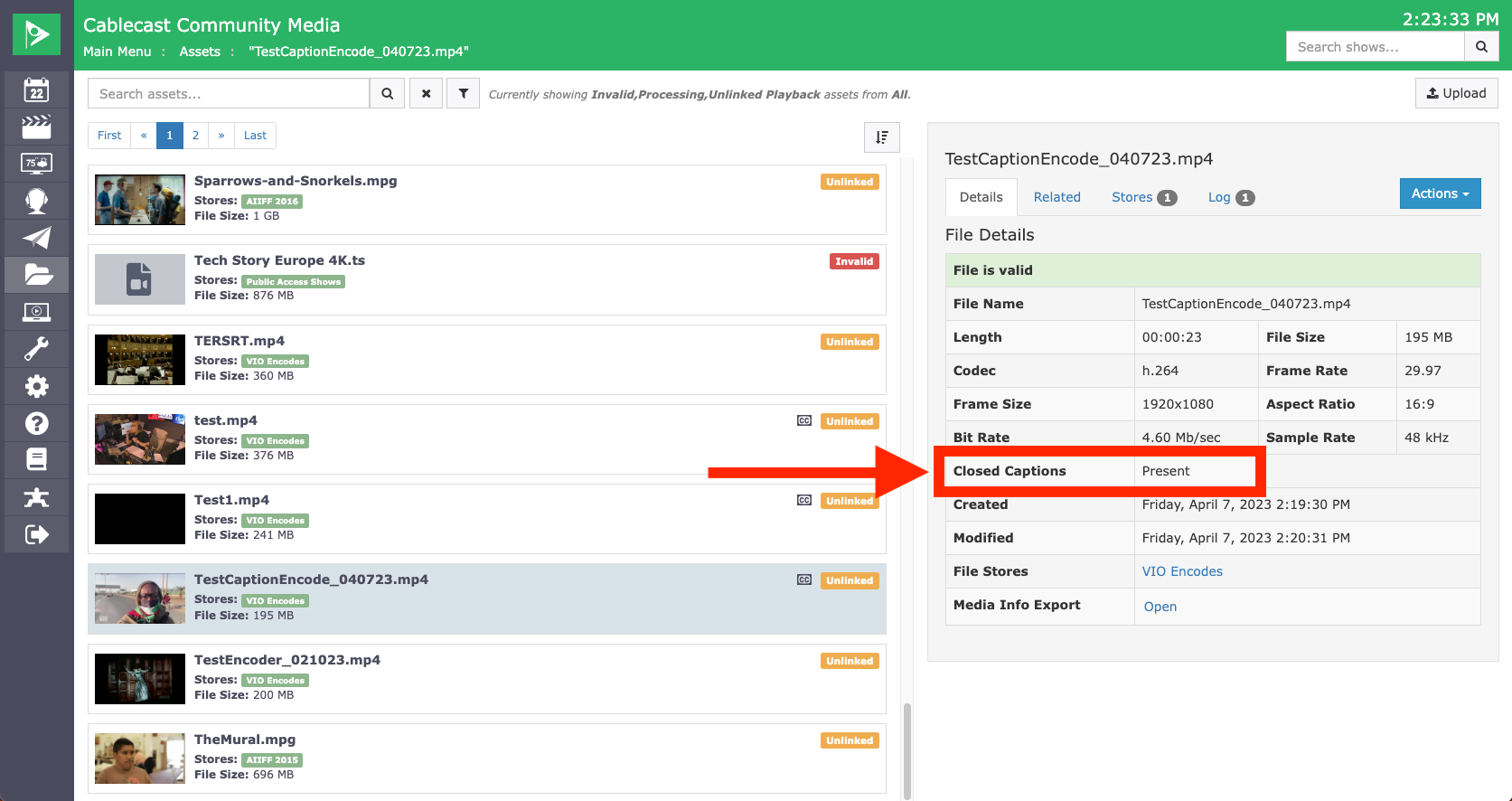
If captions are not present in the Digital File Info, contact Cablecast Support for further assistance.
Summary
Start by testing with the provided caption test file before using Cablecast captioning on your own content. If captions aren't appearing, check your downstream converters first — incompatible hardware is the most common cause. Use the encoder test to confirm whether captions are generating correctly at the server level. If issues persist, Cablecast Support can help diagnose further.
