Adding SSL/HTTPS to Cablecast 7+
Overview
Enabling SSL/HTTPS gives your Cablecast host a secure, encrypted address for public-facing traffic — the little padlock your viewers expect to see. Starting in version 7.1, Cablecast uses an Nginx proxy server to handle public traffic (things like confidence thumbnails and file uploading) and reverse-proxies back to IIS for the Cablecast Web API. That change is what makes automated SSL through Let's Encrypt possible directly from the Cablecast UI.
Prerequisites
Before you turn on SSL, make sure you have:
A DNS name. Work with your IT team to create an external (public-facing) DNS name that points to your Cablecast host unit's public IP address. The host unit is the server running the FrontDoor app.
Open ports. Allow TCP ports 80 and 443 for both outgoing and incoming traffic to your Cablecast host server. Port 80 is used briefly during certificate validation, and port 443 carries your secure HTTPS traffic going forward.
Setup Steps
Once your DNS name is in place and your ports are open:
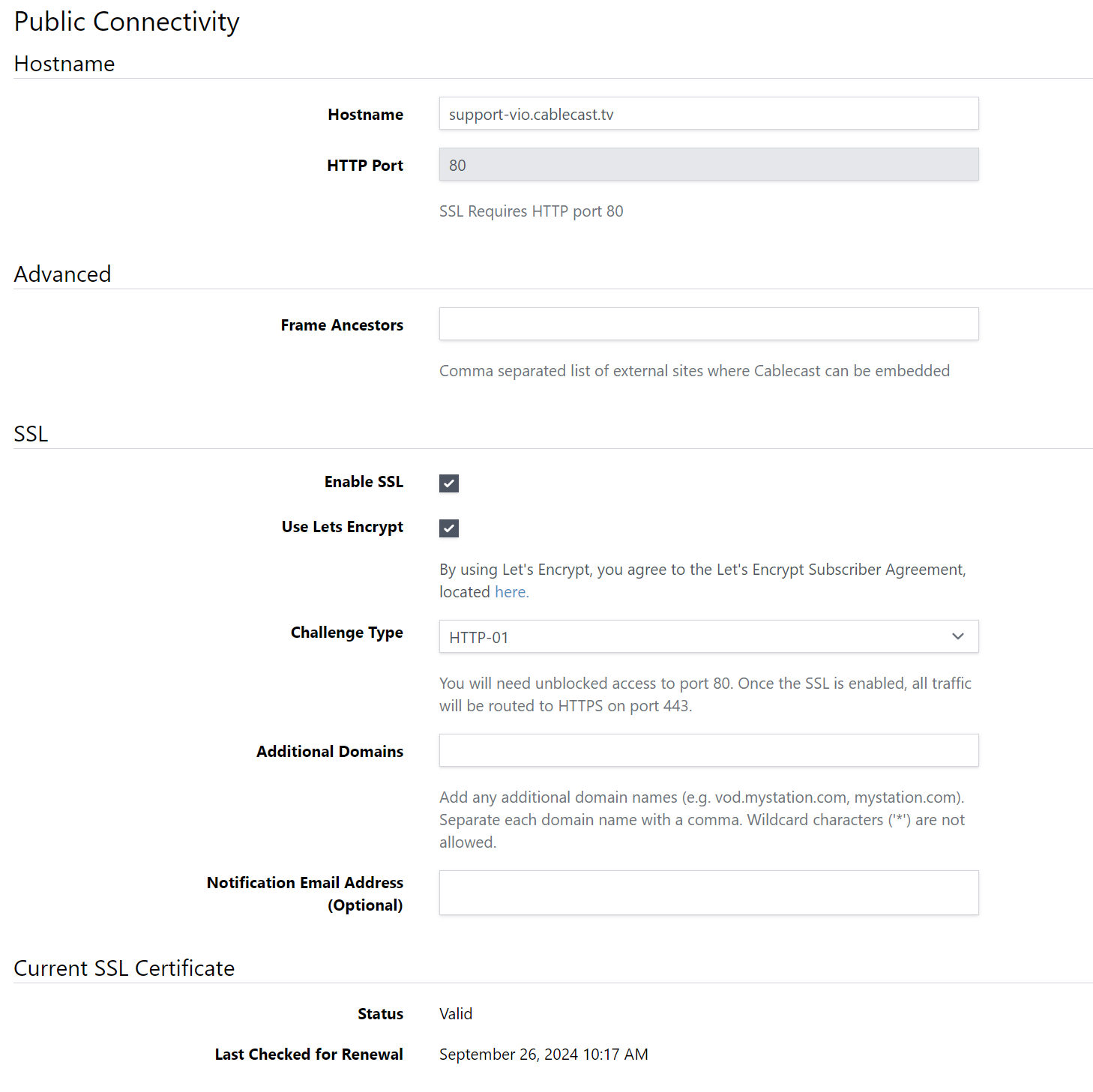
Log into Cablecast and go to Settings > System Settings > Public Connectivity.
Enter your public-facing DNS name in the Hostname field.
Check Enable SSL.
Check Use Let's Encrypt.
Click Save.
That's it — Cablecast handles the certificate request and renewal for you from here.
How Let's Encrypt Works
Curious what's happening behind the scenes? Here's the short version.
Let's Encrypt validates that you actually control the domain you entered using an HTTP challenge: "the Let's Encrypt ACME servers need to access the Cablecast machine over HTTP on port 80" to complete that check. Once validation succeeds, HTTPS turns on automatically, and any traffic still arriving over HTTP gets redirected to HTTPS.
As long as port 80 stays open to http://<server-host>/.well-known/, Cablecast can keep renewing your certificate automatically — no manual renewal required.
Using Your Own Certificate
If opening port 80 isn't an option for your network, you can provide your own certificate instead of using Let's Encrypt. Certificates must be supplied in PEM format:
One PEM file for the certificate itself — the CRT file must include the root and intermediate certificates, not just the domain certificate.
One PEM file for the private key.
Check with your certificate provider for instructions on generating and converting your certificate to PEM format — for example, DigiCert's CSR and SSL installation guide for Nginx/OpenSSL or GoDaddy's guide to generating a CSR for Nginx. Cablecast's interface will tell you the exact file names and locations it expects based on your domain name.
Additional Options
Frame Ancestors: Add an extra layer of header security by setting the Frame Ancestors field on the Public Connectivity page.
DNS-01 challenge: If the HTTP challenge described above won't work for your network setup, see Using Let's Encrypt with DNS-01 Challenge in Cablecast for an alternative validation method.
