Getting Started: Cablecast Main Menu
When you first log in to Cablecast, you land on the Main Menu — your system's home base. From here, you can check the status of your playback files, monitor your server's health, and see what's currently scheduled on your channel.
Cablecast Main Menu
Information Pane
The Information Pane runs across the top of the Main Menu and is divided into two rows.
Top Bar
The top bar displays status information for your core playback systems.

Autopilot
The Autopilot widget shows the last date and time Autopilot was sent and how far ahead your schedule is covered. If you've made changes to your schedule since the last send, a Send Autopilot link appears in the widget. Select it to commit your changes to air.


Playback Files
The Playback Files widget shows a summary of all files associated with your Cablecast system, broken down by status: unlinked, valid, processing, and invalid. Each status is a link — select any of them to jump directly to a filtered view of those files. This is a quick way to spot files that are still processing or have become invalid without leaving the Main Menu.

Video on Demand
The Video on Demand (VOD) widget works similarly to the Playback Files widget, showing a summary of your VOD files by status: waiting, complete, processing, and failed. Select any status to view those files directly.
Note: VOD requires a separate license. Contact Cablecast Sales to add VOD to your system.

Server Health
The Server Health widget displays the current health status of your Cablecast server's RAID array and storage volumes. Under normal conditions, both Raid Status and Volume Status appear as OK.

If a volume issue is detected, Volume Status changes to Warning. Select the warning to go to the Servers page, then select the warning listed under Volumes to open the Volume Status dialog. The dialog shows each drive with its capacity, free space, percent free, and a utilization bar — drives with low free space are highlighted in red.


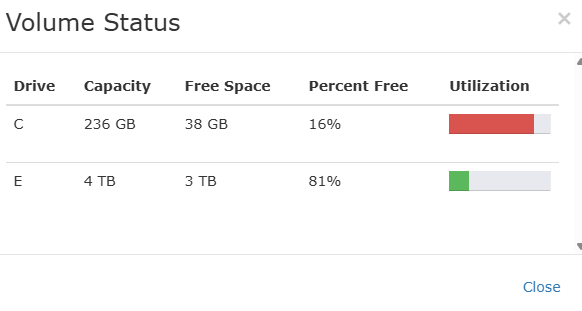
If you need help freeing up drive space, contact Cablecast Support.
Lower Bar

The lower bar displays status summaries for your Cablecast Cloud Services features. The first item, Cloud Services, is included with your Cablecast license. Any additional Cloud Services you have enabled — such as closed captioning or social streaming — appear here as well, each showing a summary of activity for your account.
Programming Information
Below the Information Pane is the Programming Information area. When your schedule is active, this section displays what's currently airing with a countdown to the end of the program, a confidence monitor, and the next scheduled program with a countdown to when it begins.

If nothing is scheduled on your channel, the area displays: "There are no events scheduled on: [your channel name]."