VIO 2 Omni Setup Guide
Thank you for purchasing a VIO server from Cablecast Community Media! This guide will walk you through setting up your new server.
Prerequisites
Before beginning the installation, please make sure that you have the following resources available:
• An ethernet network connection
• A keyboard, mouse, and a VGA monitor
• Your existing A/V infrastructure (At least one video monitor, if you’re just testing)
Overview of Setup
There are three parts to setting up your Cablecast server: Physical Setup, Software Setup, and Testing.
Physical Setup: You’ll learn about the physical connections on the Cablecast server and how to tie it into your existing infrastructure.
Software Setup: You will be taken through the steps necessary to configure the input and output configuration of your VIO Omni server.
Sound like a plan? Let’s get started!
Part I: Physical Setup
Your Cablecast server should come with the following items in the box:
AC power cables: Powers the Cablecast server.
Server: The Cablecast server itself.
Physical Connections
On the back of your Cablecast server, you’ll see several ports. Please refer to the diagram below for connections on your VIO 2 Omni server.
System Connections
All of the Cablecast servers share some basic system connections:
1. Connect a keyboard and mouse via the USB ports. 2. Connect a monitor. The monitor is required for server setup, and we recommend that it remain connected. All Cablecast servers have at least a VGA port, and this is what we recommend connecting up to the KVM in your rack. 3. Connect the Cablecast server to the network via one of the ethernet network jacks. 4. Connect the Cablecast server’s power supply to an AC power source using the provided AC power cables.
AV Connections
Next, you will connect the Cablecast VIO 2 server to your video infrastructure.
The VIO 2 Omni uses a 1x1 configuration (one input and one output).
1. Connect a cable from BNC 1 to an input on your SD/HD-SDI routing switcher.
2. Connect a cable from BNC 2 to an output on your SD/HD-SDI routing switcher.
3. Connect house tri-level or analog blackburst to REF BNC (far left in picture).
FIGURE 1: The Cablecast VIO 2 Omni
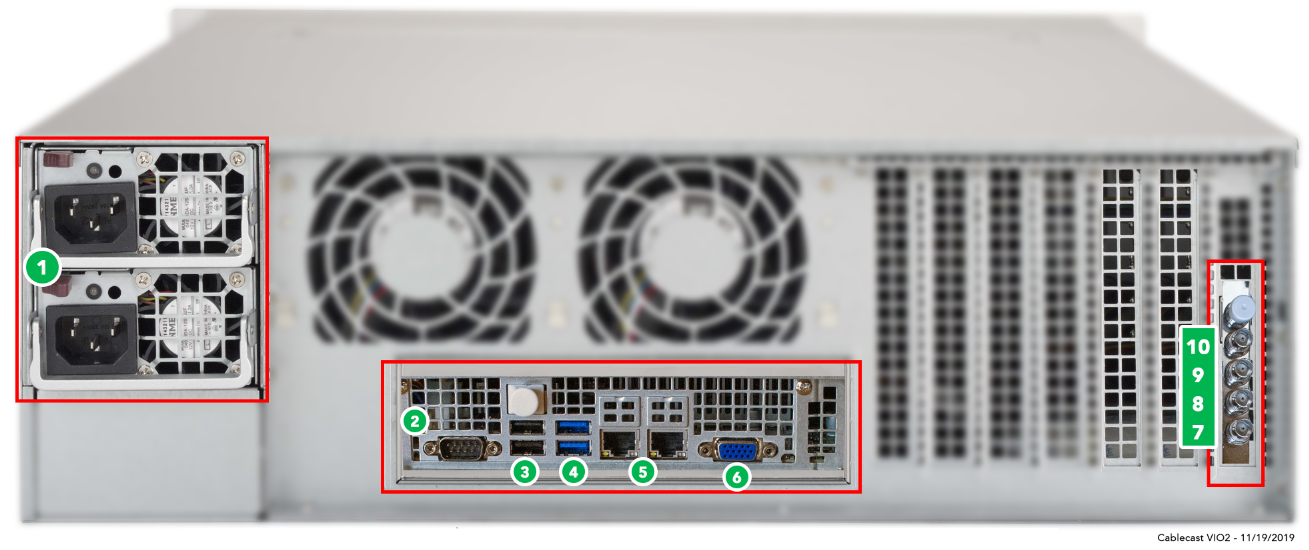
1. AC Power
2. RS232 COM port (male)
3. USB 2.0
4. USB 3.0
5. Ethernet
6. VGA
7. Ref In
8. Out 1
9. In 1
Powering On
Once your Cablecast server is connected, power on the server by pressing the power button on the front of the unit. The unit will boot and go through Windows System Preparation steps. This article talks about the Windows 11 Out of Box (OOB) experience. Your Windows credentials are set at the factory. There should be a card in the box with the server, as well as a sticker on the back, that have username and password listed on them.
If you change your Windows credentials
Be sure to note your username and password, as Cableast support does not have a way to recover the credentials other than to reimage a system.
Also note that if you plan to do network playback across servers or configure a NAS to work with video servers/VOD, it is recommended that the Windows credentials across the servers be the same.